
Community
How to earn and see your medals
See the medals you have earned and how far you are from the next ones, for consistency, volume, records and gym visits.
- Plan
- Athlete
- Coach
- Works on
- iPhone
- Android
Medals mark what you achieve by training: your first steps in the app, consistency on your weekly goal, volume, records and gym visits. They show up on their own when you get there, and the shelf also shows the ones still to come.
Step by step
Open the Profile tab and, under My training and progress, tap Medals.
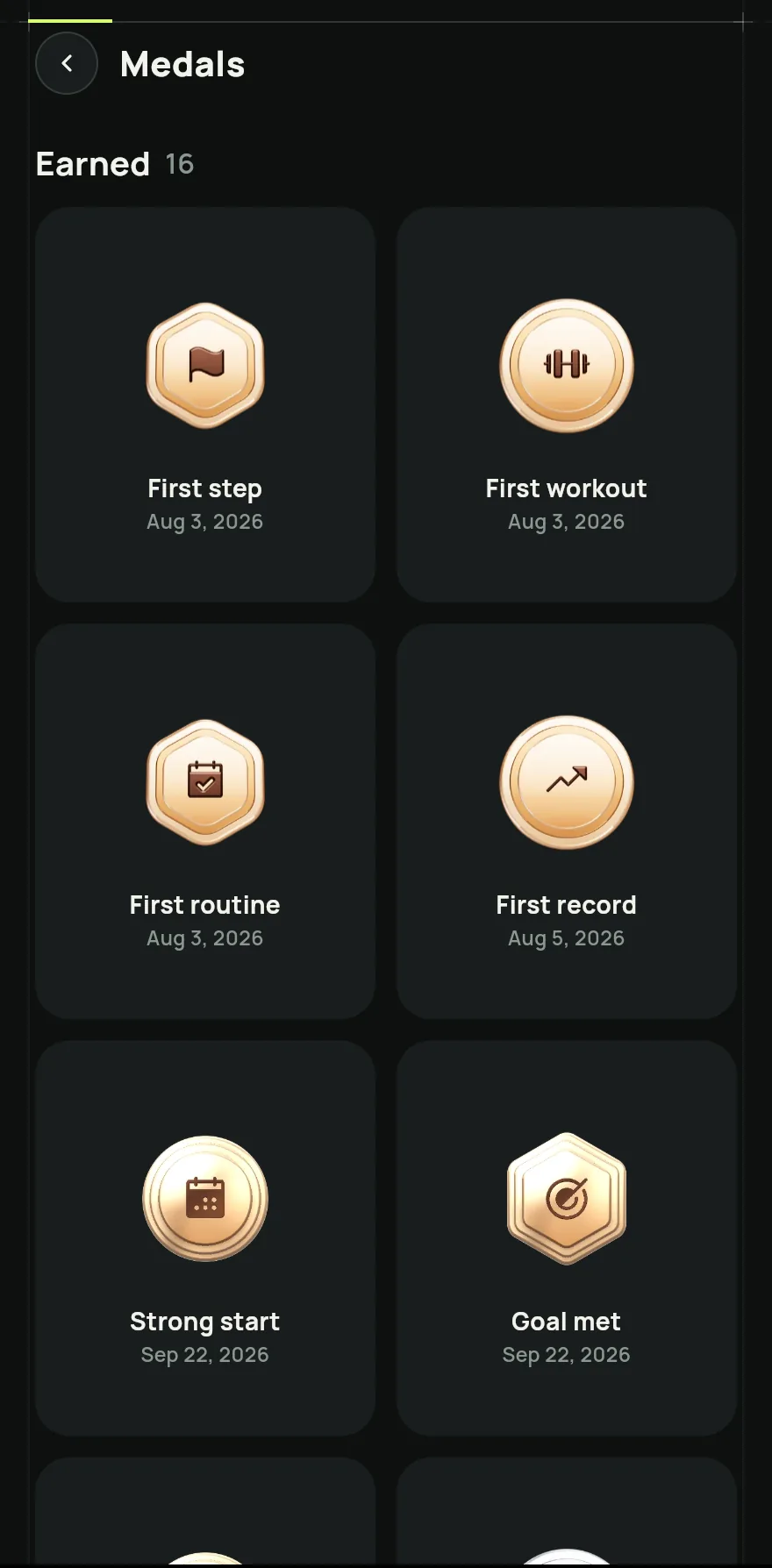
Step 1 At the top are the Earned medals, with the date each one came. Below, under Locked, each medal shows how much you have done and how much is left.
Tap a medal to open its details. Drag the medal to spin it and see the back.
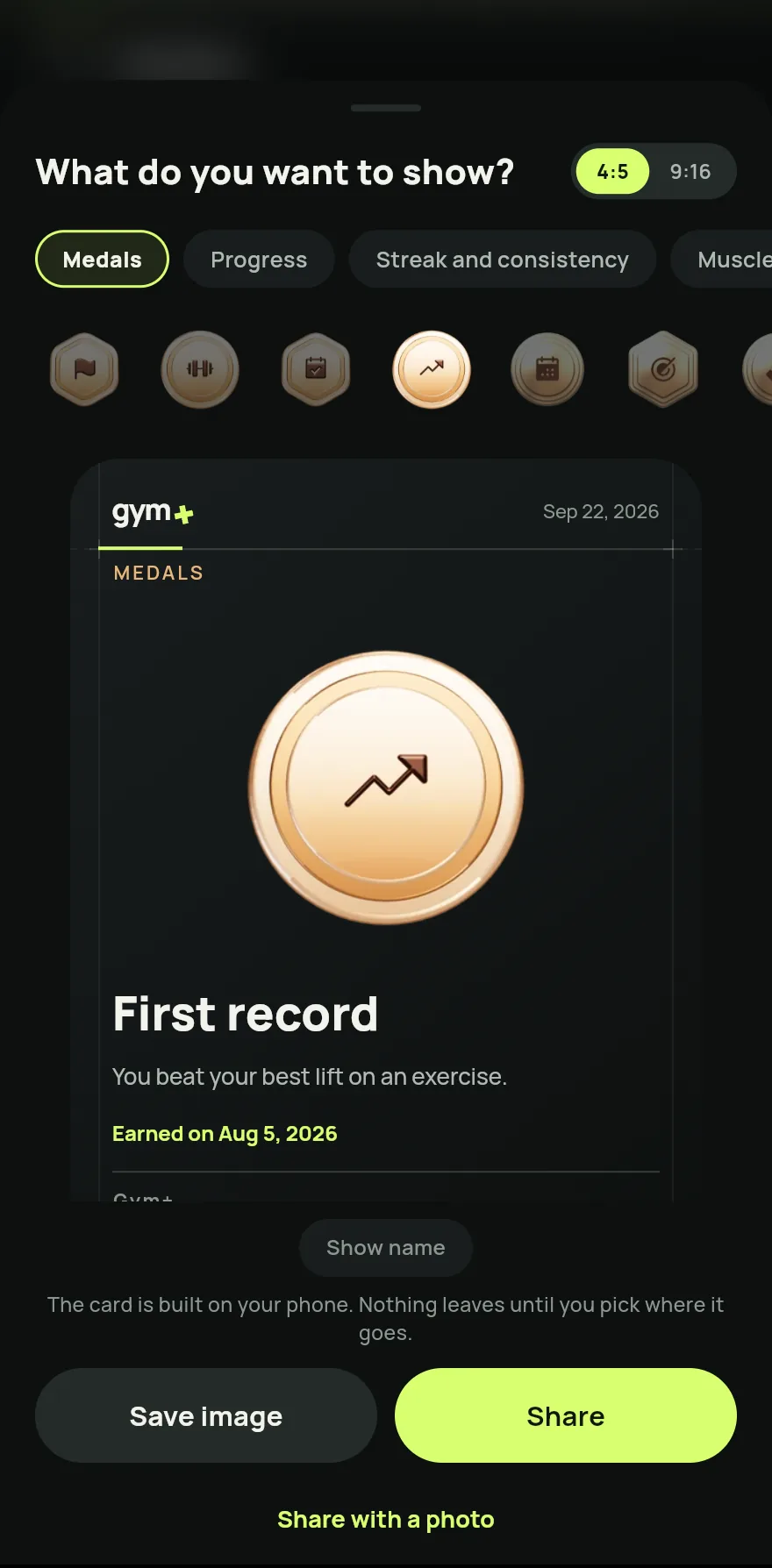
Step 3 On a medal you have earned, tap Share to send its picture to anyone you like.
Keep training: once you reach what a medal asks for, it moves to the earned ones.
Common problems
- I cannot find the Medals row in Profile
- It stays hidden while Medals, levels and competitions is off in settings. Turn it on again in the Workout group.
- A medal I earned has not shown up yet
- Some medals are confirmed by the server. Open the medals screen while online so Gym+ fetches the latest ones.
Open in the app
In Gym+, tap the question mark on the Home screen to open the Help Center and search for “Medals”. The Open now button takes you straight to the screen.
Related articles
- How to log your gym visitsCheck in at the gym with a selfie taken on the spot, follow your streak and choose who sees your photos.
- How to join the ranking and see your positionJoin the ranking, choose which boards to appear on and compare your consistency, strength and volume with friends, gym and region.
- How the league and its divisions workJoin the league, compete for the season in a drawn group of your division and climb from Bronze to Master by training.
Updated on 10/26/2026, app version 1.3.6