
Settings
How to change the app language
Gym+ follows your phone's language. See how to choose another language just for the app, or go back to automatic.
- Plan
- Athlete
- Coach
- Works on
- iPhone
- Android
By default, Gym+ uses the same language as your phone. If you prefer the app in another language, you can pick one of those available without changing anything else on the device.
Step by step
On the Home screen, tap the settings button at the top, next to search. You can also get there from the Profile tab, under Settings.
In the General group, tap Language. The language in use shows next to it.
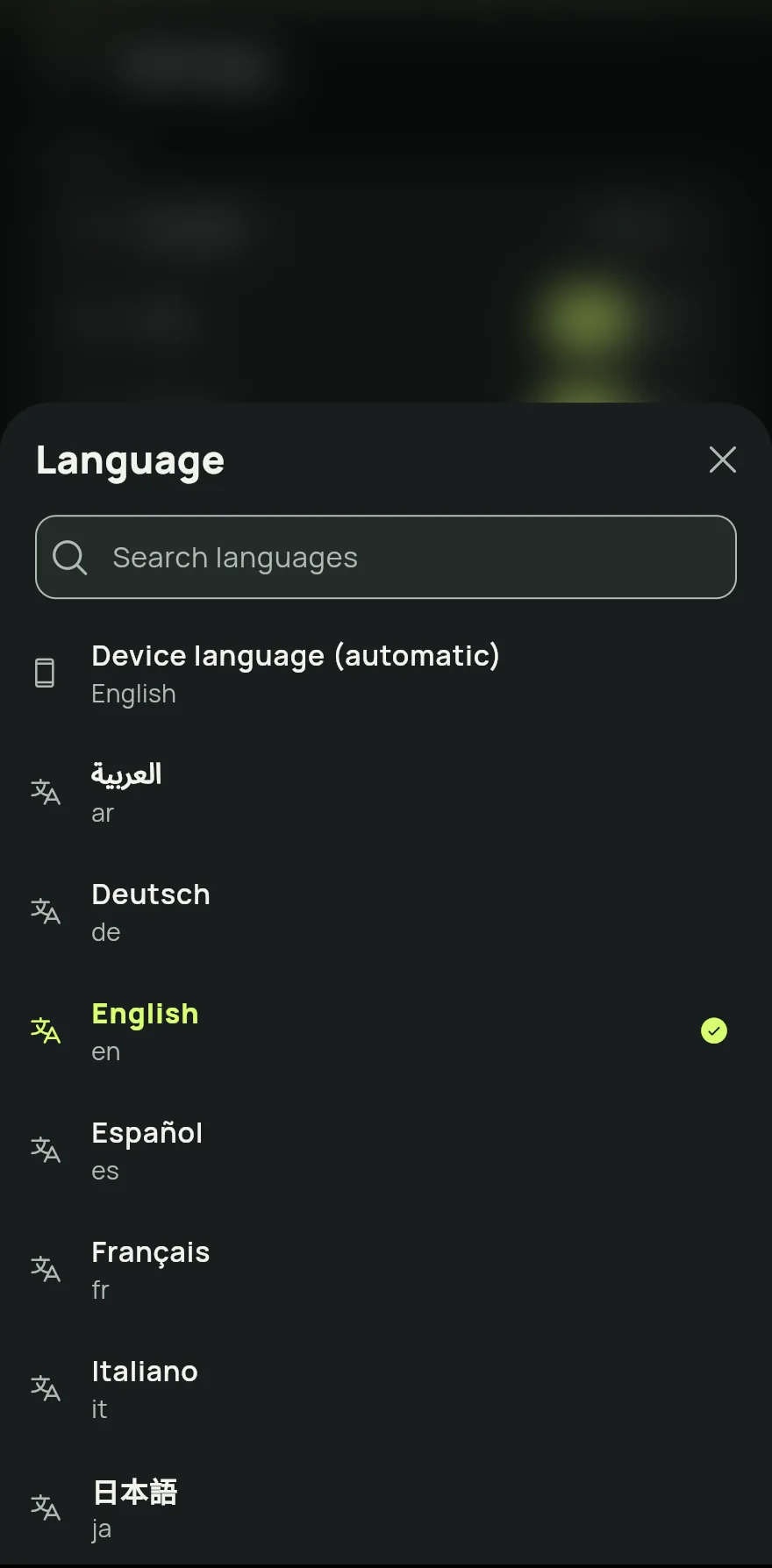
Step 2 In the list, tap the language you want. The app switches at once and the list closes.
To follow your phone again, open Language once more and tap Device language (automatic).
Common problems
- The app is in a language I did not choose
- Gym+ follows your phone's language. Choose the one you want under Language.
- My language is not on the list
- Gym+ only shows the languages the app has been translated into. On automatic, a phone set to a language outside the list shows the app in English.
Open in the app
In Gym+, tap the question mark on the Home screen to open the Help Center and search for “Language”. The Open now button takes you straight to the screen.
Related articles
- How to change weight and length unitsChoose kilograms or pounds for your loads, and centimeters or inches for your body measurements.
- How to set the rest between sets and the alarmSet the default rest between sets, adjust it during a workout and choose how the alarm tells you the rest is over.
- How to set sound effects and vibrationTurn the short workout sounds on or off, set their volume and choose whether Gym+ only vibrates.
Updated on 10/26/2026, app version 1.3.6