
Settings
How to set the rest between sets and the alarm
Set the default rest between sets, adjust it during a workout and choose how the alarm tells you the rest is over.
- Plan
- Athlete
- Coach
- Works on
- iPhone
- Android
When you mark a set as done, Gym+ starts counting the rest on its own. When the time is up, the alarm tells you the next set is waiting. You choose the default time, the alarm sound and whether it rings, follows silent mode or only vibrates.
Step by step
On the Home screen, tap the settings button at the top, next to search. You can also get there from the Profile tab, under Settings.
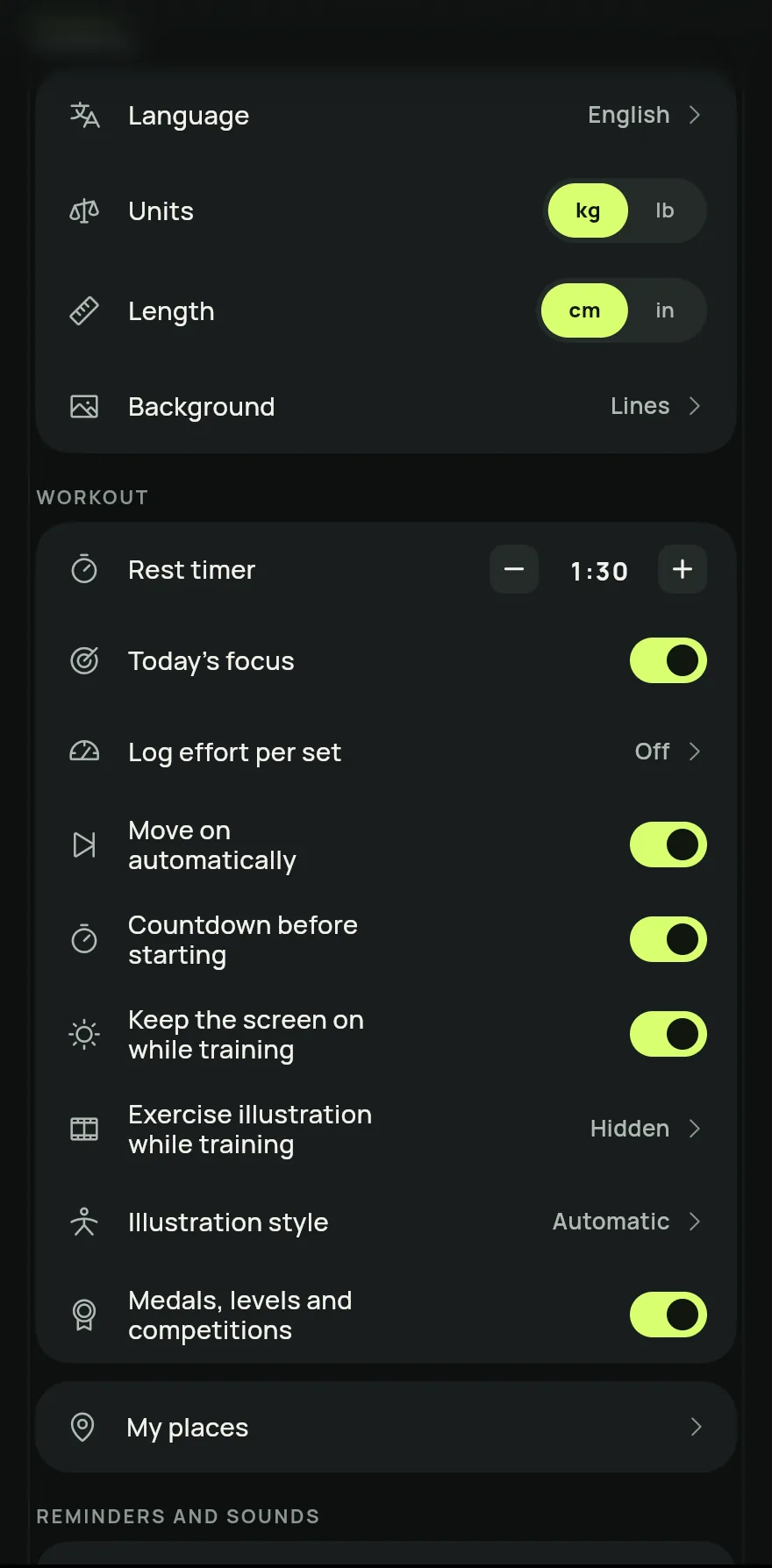
Step 1 In the Workout group, use the minus and plus buttons on Rest timer to change the time in steps of 15 seconds. Tap the time to pick an exact value on the ruler, up to 10 minutes.
To skip resting altogether, lower the time until it shows Off. The timer then does not appear after your sets.
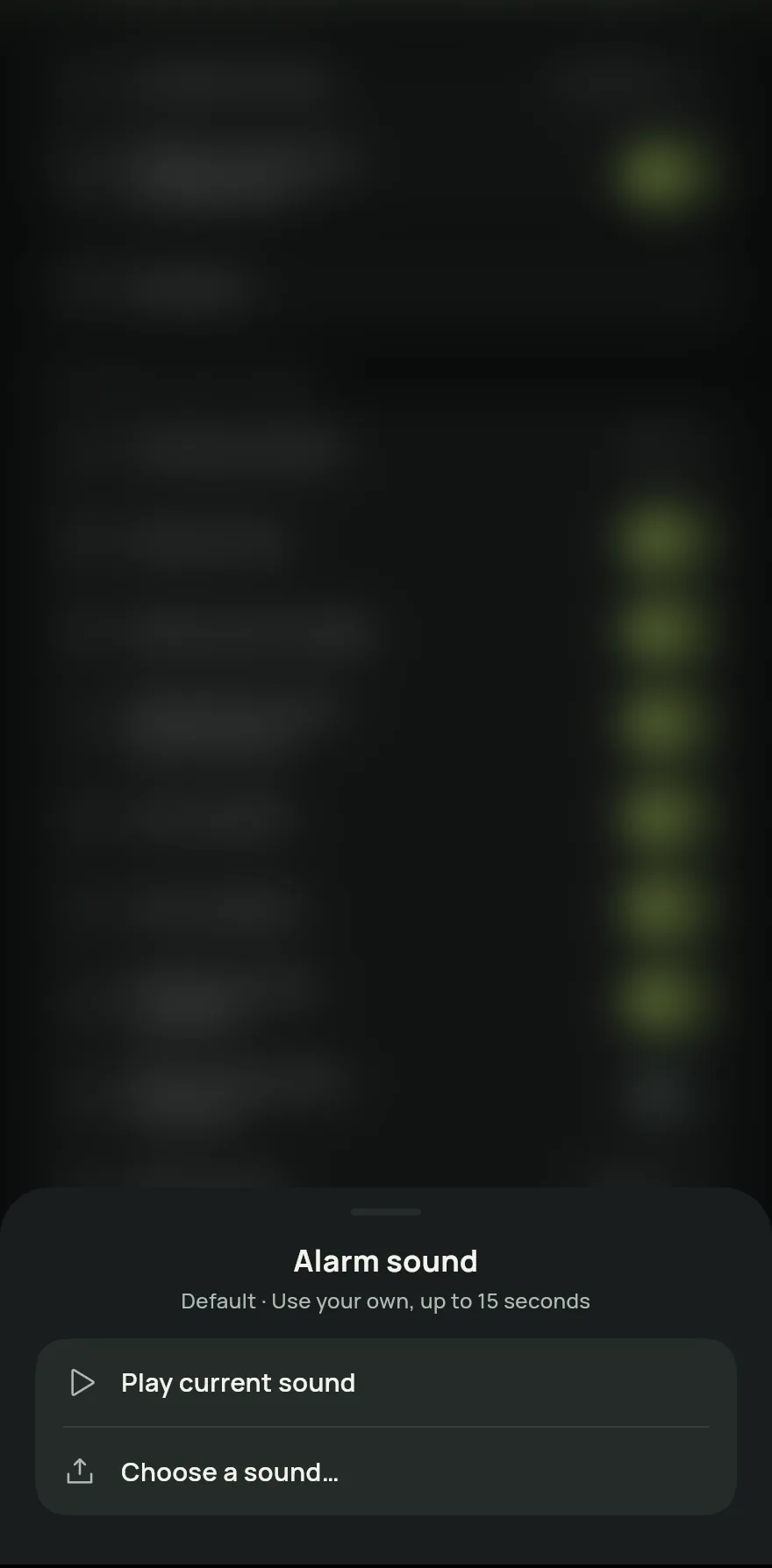
In the Reminders and sounds group, tap Alarm sound. Use Play current sound to hear it, Choose a sound… to use your own audio of up to 15 seconds, or Reset to default to go back to the original sound.
Step 4 Under When rest ends, choose Always ring, Follow silent mode or Vibrate only.
During a workout, tap +15 or −15 to adjust the rest that is running, or skip the rest to go straight to the next set.
Common problems
- The alarm did not ring with the phone on silent
- Under When rest ends, choose Always ring. It uses the alarm volume, even on silent.
- The alarm neither rings nor vibrates
- Check whether Vibration only is on under Sound effects: it silences every sound in the app, the rest alarm included. See How to set sound effects and vibration.
- The sound I picked was not accepted
- The audio must be 15 seconds or shorter and in a common format, such as MP3, M4A or WAV.
Open in the app
In Gym+, tap the question mark on the Home screen to open the Help Center and search for “Rest and alarm”. The Open now button takes you straight to the screen.
Related articles
- How to change the app languageGym+ follows your phone's language. See how to choose another language just for the app, or go back to automatic.
- How to change weight and length unitsChoose kilograms or pounds for your loads, and centimeters or inches for your body measurements.
- How to set sound effects and vibrationTurn the short workout sounds on or off, set their volume and choose whether Gym+ only vibrates.
Updated on 10/26/2026, app version 1.3.6