
Coach
The coach area: students, programs and messages
On the Coach plan, the Coach tab brings together your weekly dashboard, your students, programs, exercise library and inbox.
- Plan
- Coach
- Works on
- iPhone
- Android
On the Coach plan, Gym+ adds the Coach tab to the bottom bar. There you follow your students, build and send programs, create your own exercises and answer what comes in from your students. Your own workouts stay in the other tabs, as before.
Before you start
- The coach area is part of the Coach plan. See the plans.
Step by step
Tap the Coach tab. It also opens from the Coach dashboard card in the Profile tab.
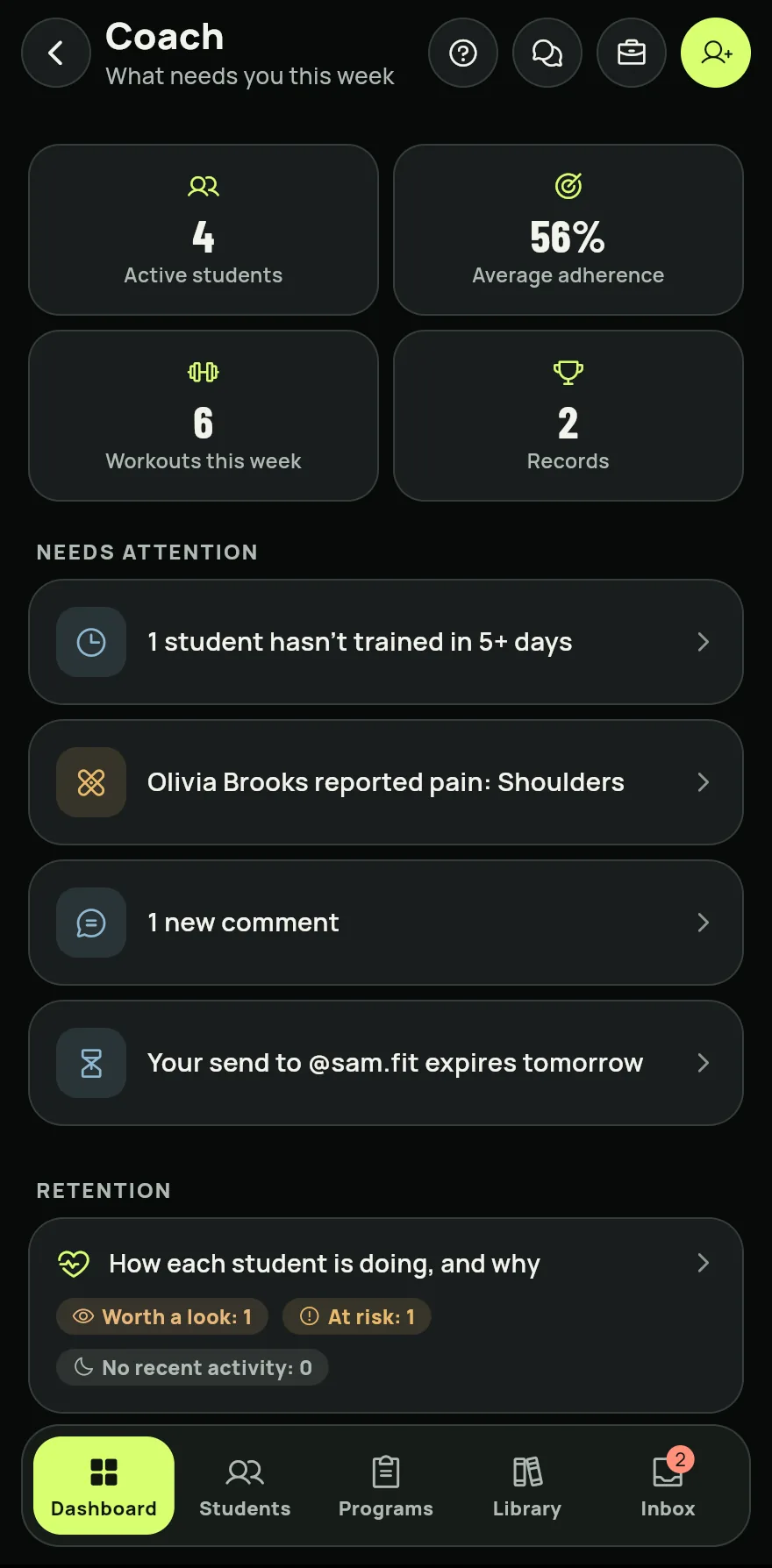
Step 1 In Dashboard, see what needs you this week: Needs attention lists students who stopped training, low adherence, pain reports and new comments, and Trained today shows who has already trained.
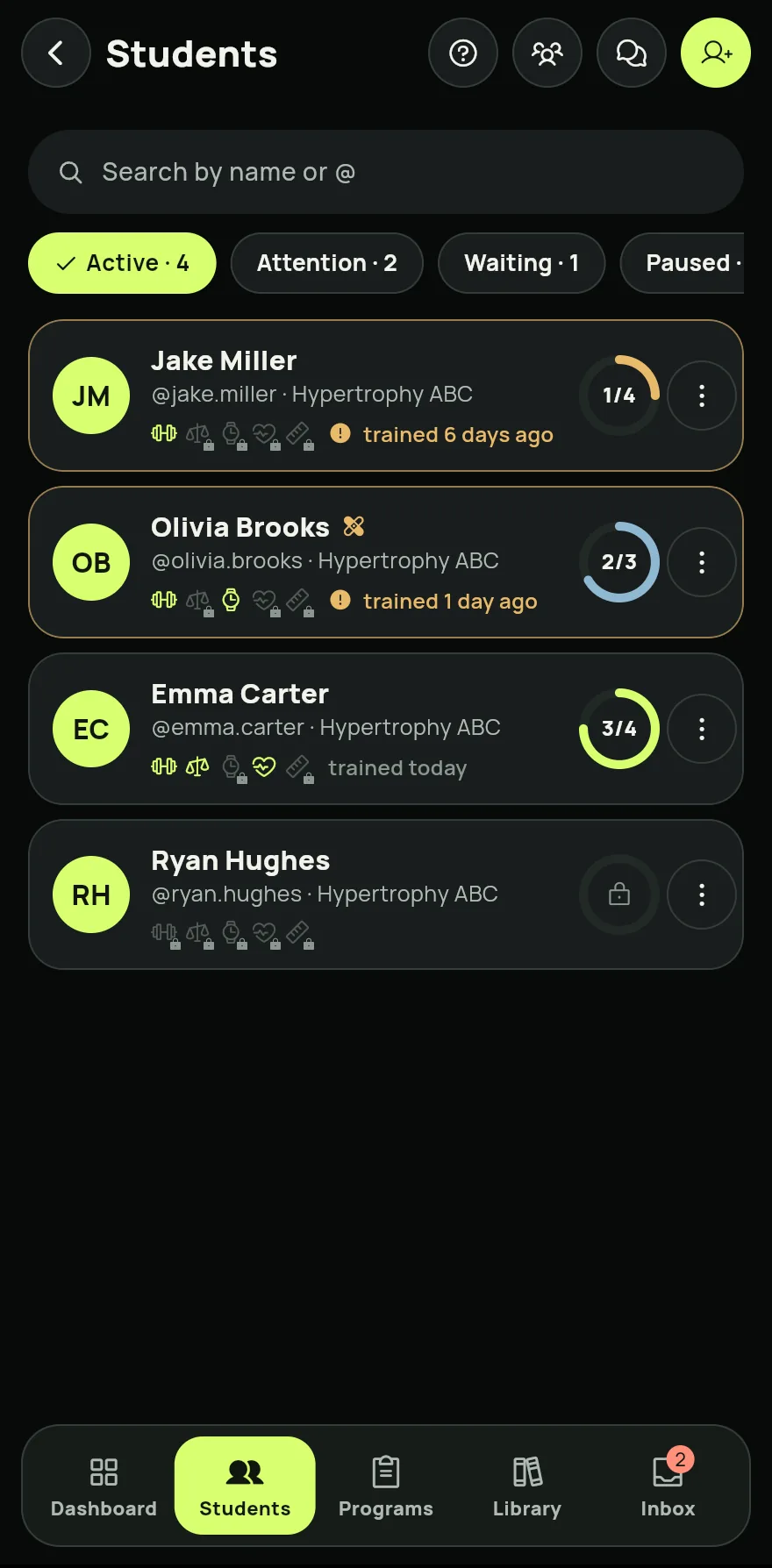
In Students, tap a student to see their profile. To bring someone new in, tap Send to a student. See How to invite students by @ or by link.
Step 3 In Programs, tap New program and choose Blank program or From a template. Publish the program before sending it.
In Library, tap New exercise to create your own exercises, or open Templates to start a program from a template.
In Inbox, read the comments, workouts and alerts from your students. Tap Mark all as read when you are done.
Common problems
- I don't see the Coach tab
- The tab only shows with an active Coach plan. Without it, the Profile tab shows Become a Coach instead. See the plans.
- I can't send a program
- Publish the program before sending it. Unpublished programs can't be sent.
- Every seat in your plan is in use shows up
- In Dashboard, tap Manage and then Student seats and packages to add more students.
Open in the app
In Gym+, tap the question mark on the Home screen to open the Help Center and search for “Coach area”. The Open now button takes you straight to the screen.
Related articles
- How to add your coach and choose what they seeAdd your coach by their @, get the workouts they send and decide what they can see, changing it whenever you like.
- Your coach's program on the Home screenWith an active program from your coach, their workout comes first on the Home screen with a Start button, and yours sits below.
- How to invite students by @ or by linkSend a program to a student's @, or invite someone without Gym+ by link or QR. The Coach plan includes 10 students.
Updated on 10/26/2026, app version 1.3.6