
Coach
How to add your coach and choose what they see
Add your coach by their @, get the workouts they send and decide what they can see, changing it whenever you like.
- Plan
- Athlete
- Coach
- Works on
- iPhone
- Android
To train with a coach on Gym+, you add their @. The workouts they send to your @ show up in My coaches and workouts, and they only get what you allow. Nobody sends you invitations: the link always starts with you.
Step by step
Open the Profile tab and, under Coaches, tap My coaches and workouts.
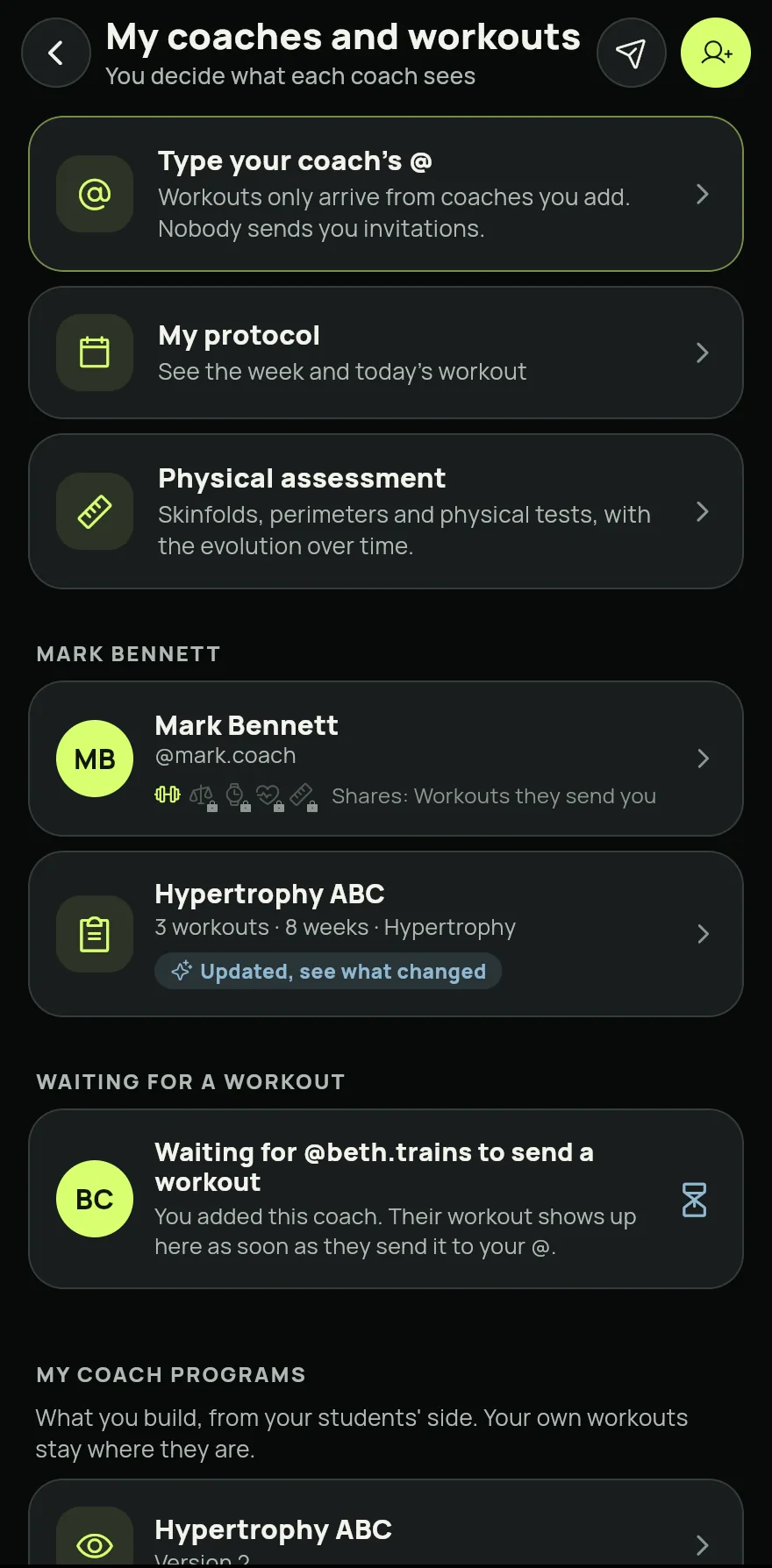
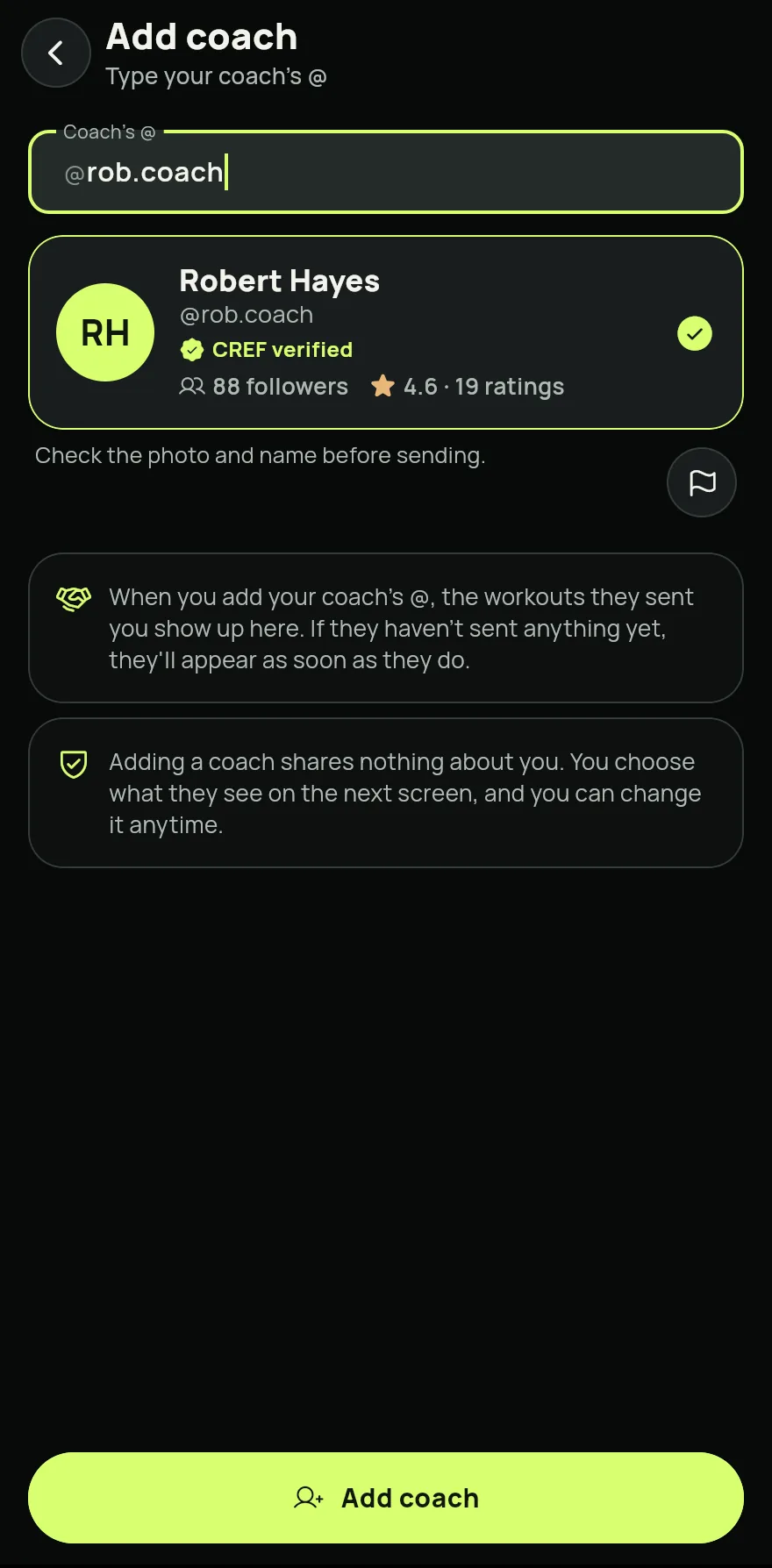
Step 1 Tap Add coach and type your coach's @ in the Coach's @ field.
Check the photo and name that show up and tap Add coach. Adding a coach shares nothing about you.
Step 3 If the coach has already sent a workout to your @, it arrives at once and the screen where you choose what the coach can see opens. Turn on what you want to share, such as health data and progress photos, and tap Save choices. To share nothing beyond their workouts, tap Share only their workouts.
Step 4 If they have not sent anything yet, the coach stays under Waiting for a workout. The workout shows up as soon as they send it to your @.
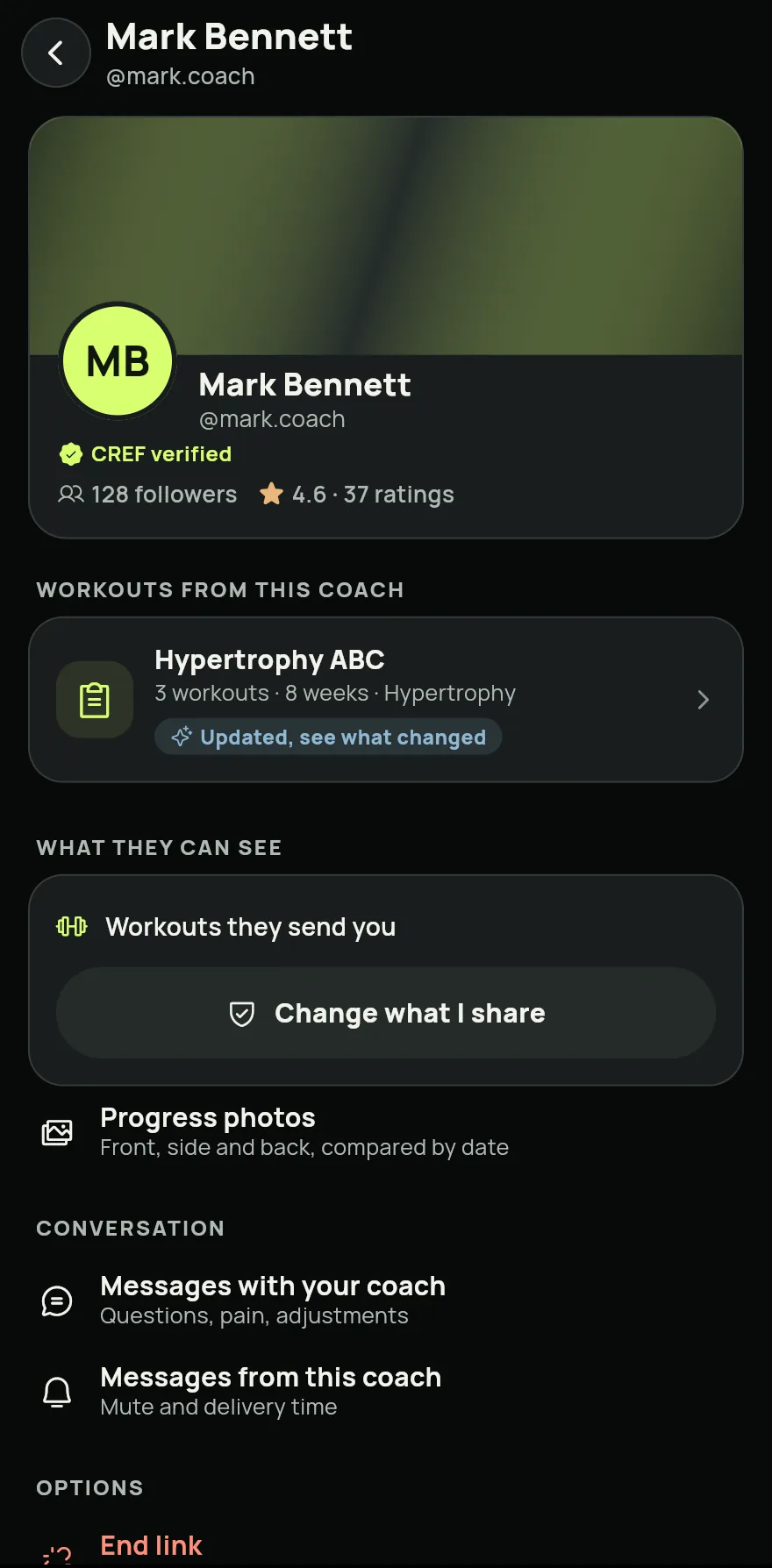
To see a coach's workouts or change what they see, tap their name in the list and then Change what I share. Turning something off and saving stops access right away.
Common problems
- No account with this @ shows up
- Check the spelling with your coach. An @ has 3 to 20 letters, numbers, dots or underscores.
- I added the coach, but no workout arrived
- The workout shows up when they send it to your @. Check that they used your @ correctly.
- I am 16 or 17
- A link with a coach also needs your guardian's confirmation. Gym+ asks for their details when you add the coach.
- I want to see the coach's workout on the Home screen
- With an active program, their workout comes first on the Home screen. See Your coach's program on the Home screen.
Open in the app
In Gym+, tap the question mark on the Home screen to open the Help Center and search for “My coaches”. The Open now button takes you straight to the screen.
Related articles
- Your coach's program on the Home screenWith an active program from your coach, their workout comes first on the Home screen with a Start button, and yours sits below.
- The coach area: students, programs and messagesOn the Coach plan, the Coach tab brings together your weekly dashboard, your students, programs, exercise library and inbox.
- How to invite students by @ or by linkSend a program to a student's @, or invite someone without Gym+ by link or QR. The Coach plan includes 10 students.
Updated on 10/26/2026, app version 1.3.6