
Coach
How to invite students by @ or by link
Send a program to a student's @, or invite someone without Gym+ by link or QR. The Coach plan includes 10 students.
- Plan
- Coach
- Works on
- iPhone
- Android
You bring a student to Gym+ in two ways: by sending to their @, if they already use the app, or by a link or QR, if they don't have Gym+ yet. The student isn't notified: the program shows up for them when they add your @.
Before you start
- Inviting students is part of the Coach plan, which includes 10 students. You can add more in packs. See the plans.
Step by step
In the Coach tab, under Dashboard or Students, tap Send to a student.
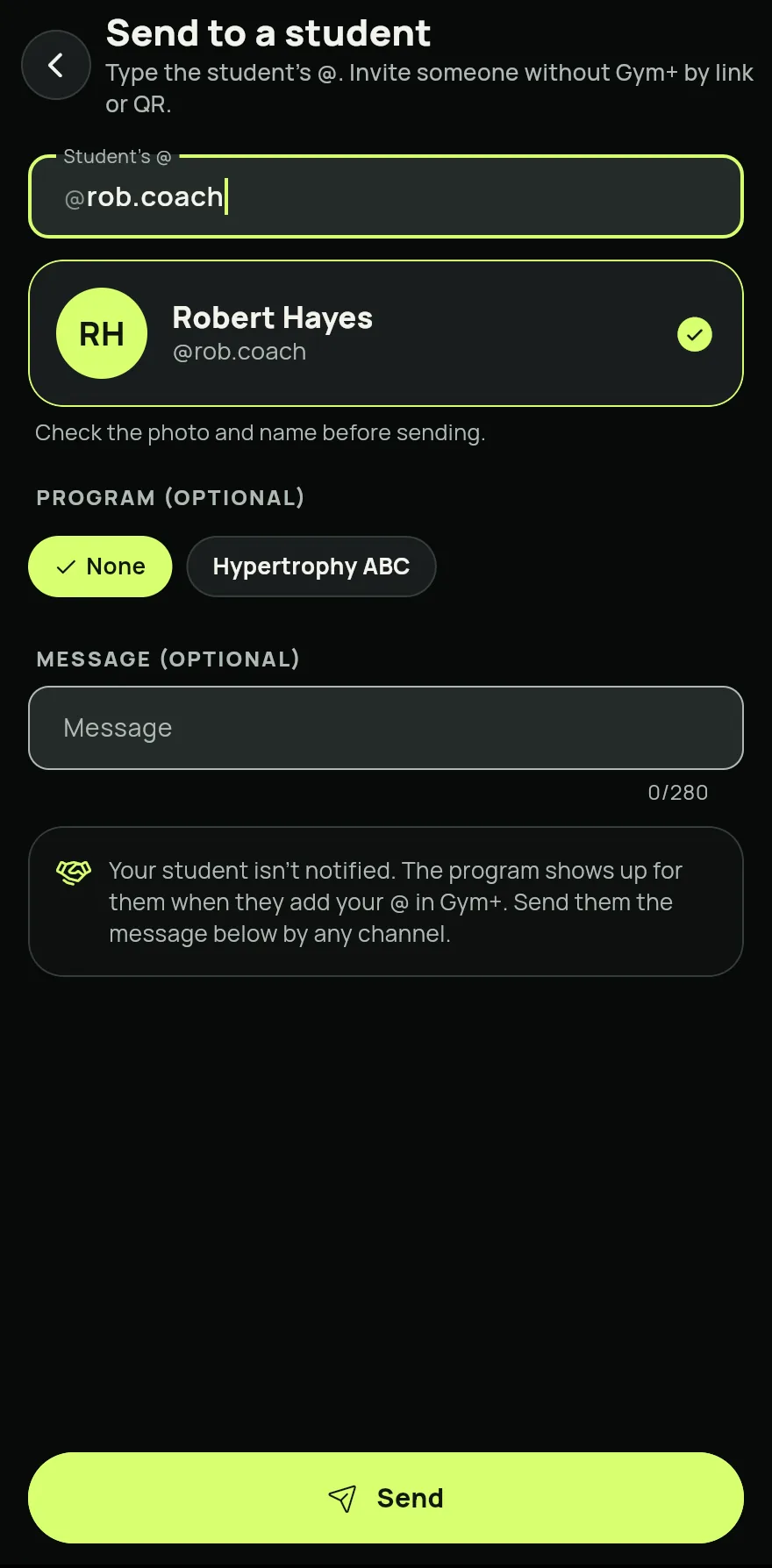
Step 1 Type the student's @ in the Student's @ field, check the photo and name that show up and confirm the person.
If you like, pick a program under Program (optional) and write a Message (optional). The student sees the message when they add you.
Tap Send. The Sent to screen shows Waiting for the student to add you.
Tap Copy message or Share message and send it to your student by any channel. The message explains how to add your @.
For someone who doesn't have Gym+ yet, tap Invite by link or QR on the same screen. Show the QR for the person to scan, or tap Share link.
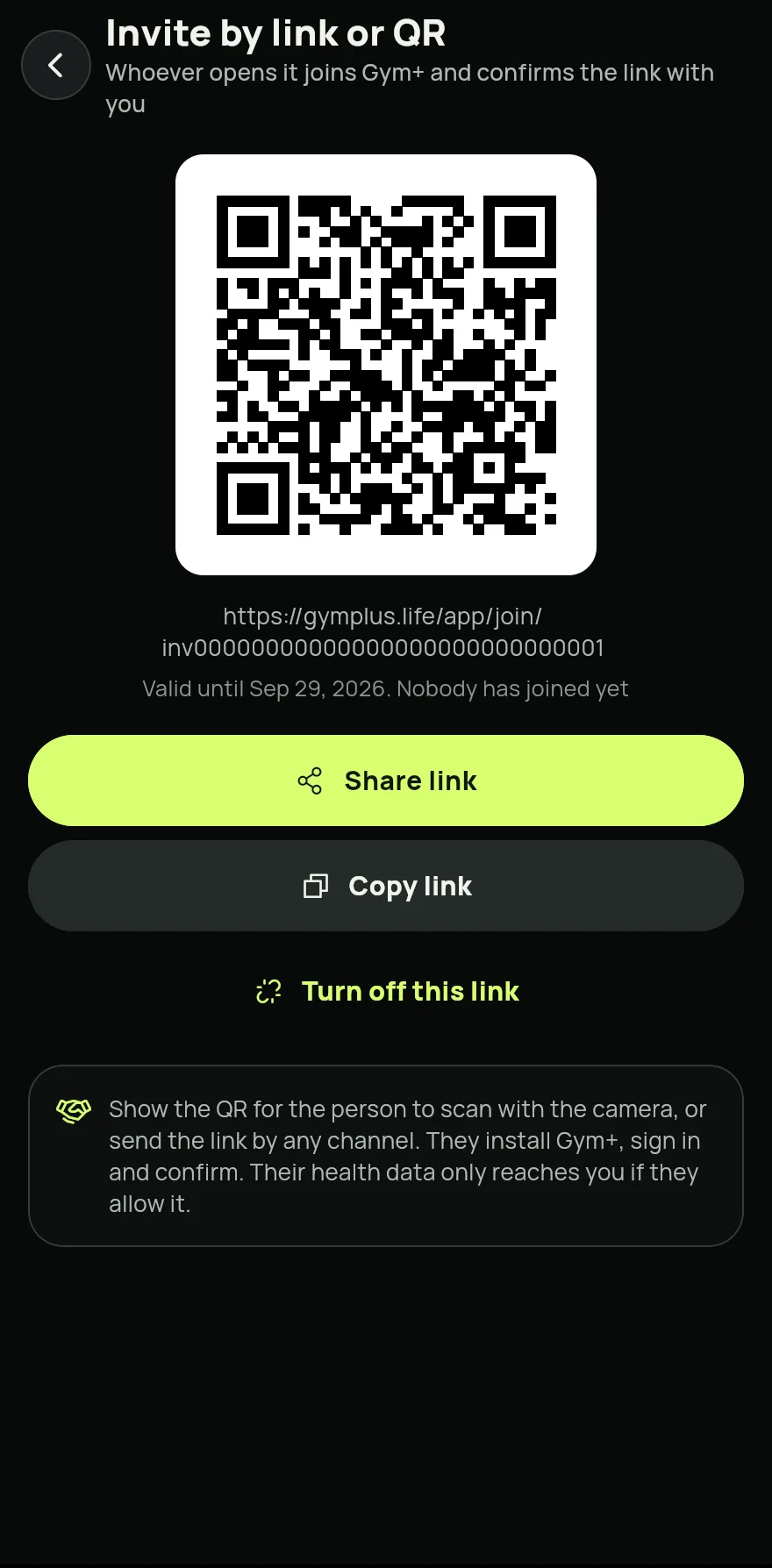
Step 6
Common problems
- Every seat in your plan is in use shows up
- In Dashboard, tap Manage and then Student seats and packages to add more students.
- The student didn't get the program
- The program only shows up after they add your @ in Gym+. Send them the message. See How to add your coach and choose what they see.
- I sent to the wrong person
- While the student hasn't added you, tap the send in Students and then Cancel invite. You can send a new one later.
Open in the app
In Gym+, tap the question mark on the Home screen to open the Help Center and search for “Inviting students”. The Open now button takes you straight to the screen.
Related articles
- How to add your coach and choose what they seeAdd your coach by their @, get the workouts they send and decide what they can see, changing it whenever you like.
- Your coach's program on the Home screenWith an active program from your coach, their workout comes first on the Home screen with a Start button, and yours sits below.
- The coach area: students, programs and messagesOn the Coach plan, the Coach tab brings together your weekly dashboard, your students, programs, exercise library and inbox.
Updated on 10/26/2026, app version 1.3.6