
Coach
Your coach's program on the Home screen
With an active program from your coach, their workout comes first on the Home screen with a Start button, and yours sits below.
- Plan
- Athlete
- Coach
- Works on
- iPhone
- Android
When your coach sends you a program and it is active, the Home screen shows their workout first. Your own workout of the day is still there, right below, under Your workout.
Before you start
- You need to have added your coach and received a program from them. See How to add your coach and choose what they see.
Step by step
Open the Home screen. At the top is the coach card, with Today's workout, the workout's name, From and the coach's name, the number of exercises and the approximate time.
Tap Start to train. The workout opens with the exercises your coach prescribed.
When there is no coach workout today, the card shows the next one, under Next workout, and the Coach program button opens the whole program.
Right below the card, under Your workout, is your own workout of the day, for when you want to train on your own.
A New badge shows on the card when a new or updated program arrives. The first time the news shows, Gym+ also lets you know at the top of the screen.
To see everything your coach sent you, scroll down the Home screen and tap Coach program, right below your routines.
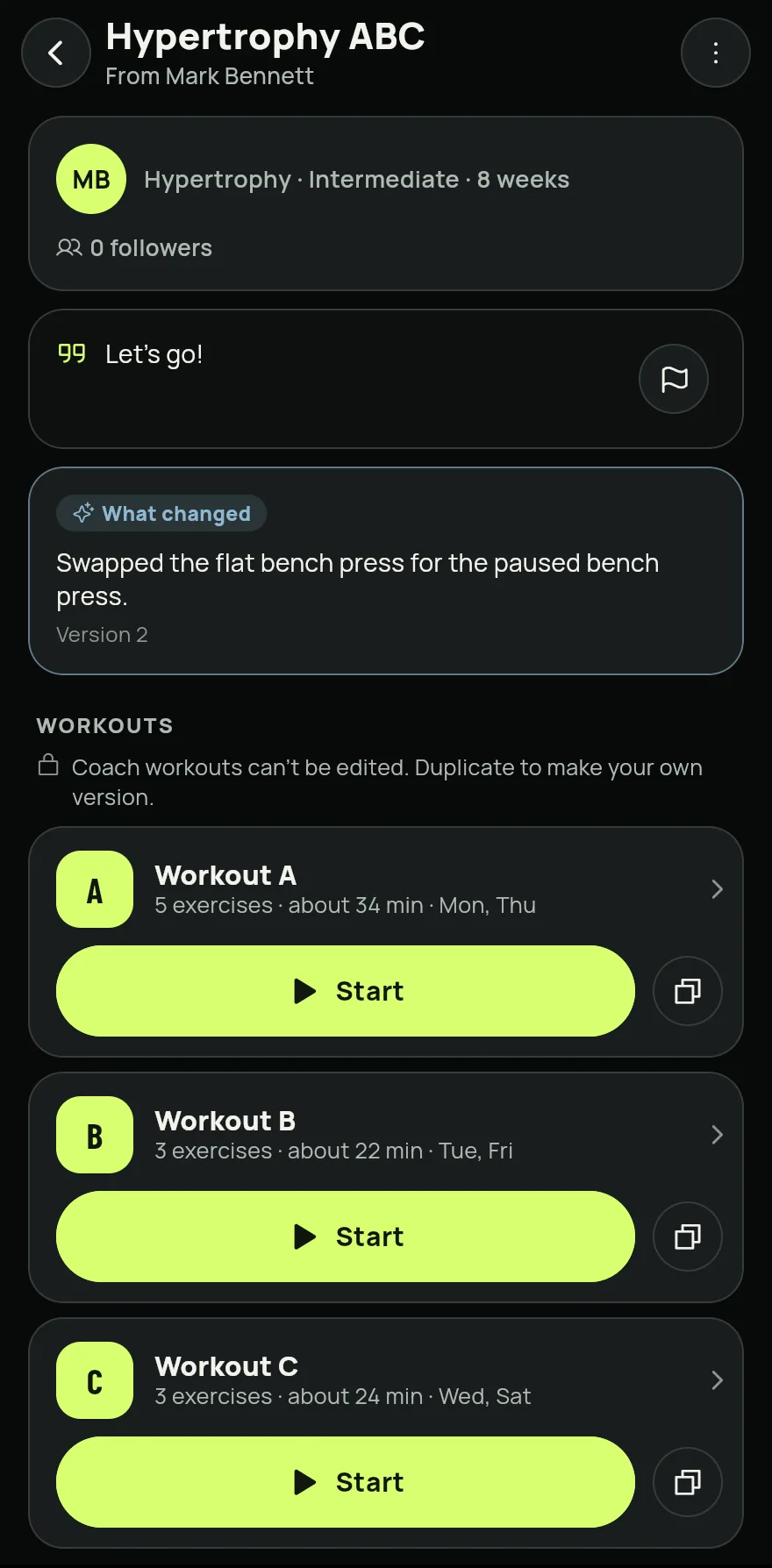
Step 6
Common problems
- The card says Program ended
- Your coach ended the program, and today's workout is your own again. Tap Got it to clear the notice.
- The card says Offline
- Gym+ could not fetch the program right now and shows when it was last updated. Check your connection and go back to the Home screen.
- The coach's workout is not on the Home screen
- Check in My coaches and workouts that the program is active. See How to add your coach and choose what they see.
Open in the app
In Gym+, tap the question mark on the Home screen to open the Help Center and search for “Coach program on the home screen”. The Open now button takes you straight to the screen.
Related articles
- How to add your coach and choose what they seeAdd your coach by their @, get the workouts they send and decide what they can see, changing it whenever you like.
- The coach area: students, programs and messagesOn the Coach plan, the Coach tab brings together your weekly dashboard, your students, programs, exercise library and inbox.
- How to invite students by @ or by linkSend a program to a student's @, or invite someone without Gym+ by link or QR. The Coach plan includes 10 students.
Updated on 10/26/2026, app version 1.3.6