
Body and health
How to log and track your body composition
Bring your bioimpedance report, check every number and follow body fat, muscle mass and goals over time.
- Plan
- Athlete
- Coach
- Works on
- iPhone
- Android
Body composition keeps your bioimpedance assessments. You bring the report, check every number, and only what you confirm is saved. Once your assessments are saved, you can see the evolution, compare two assessments and follow goals.
Assessments stay on your phone and go into your backup. A coach only sees them with your permission for body composition, which you can revoke.
Step by step
On the Profile tab, under My training and progress, tap Body composition. The same shortcut is on the Body composition card of the Measurements screen.
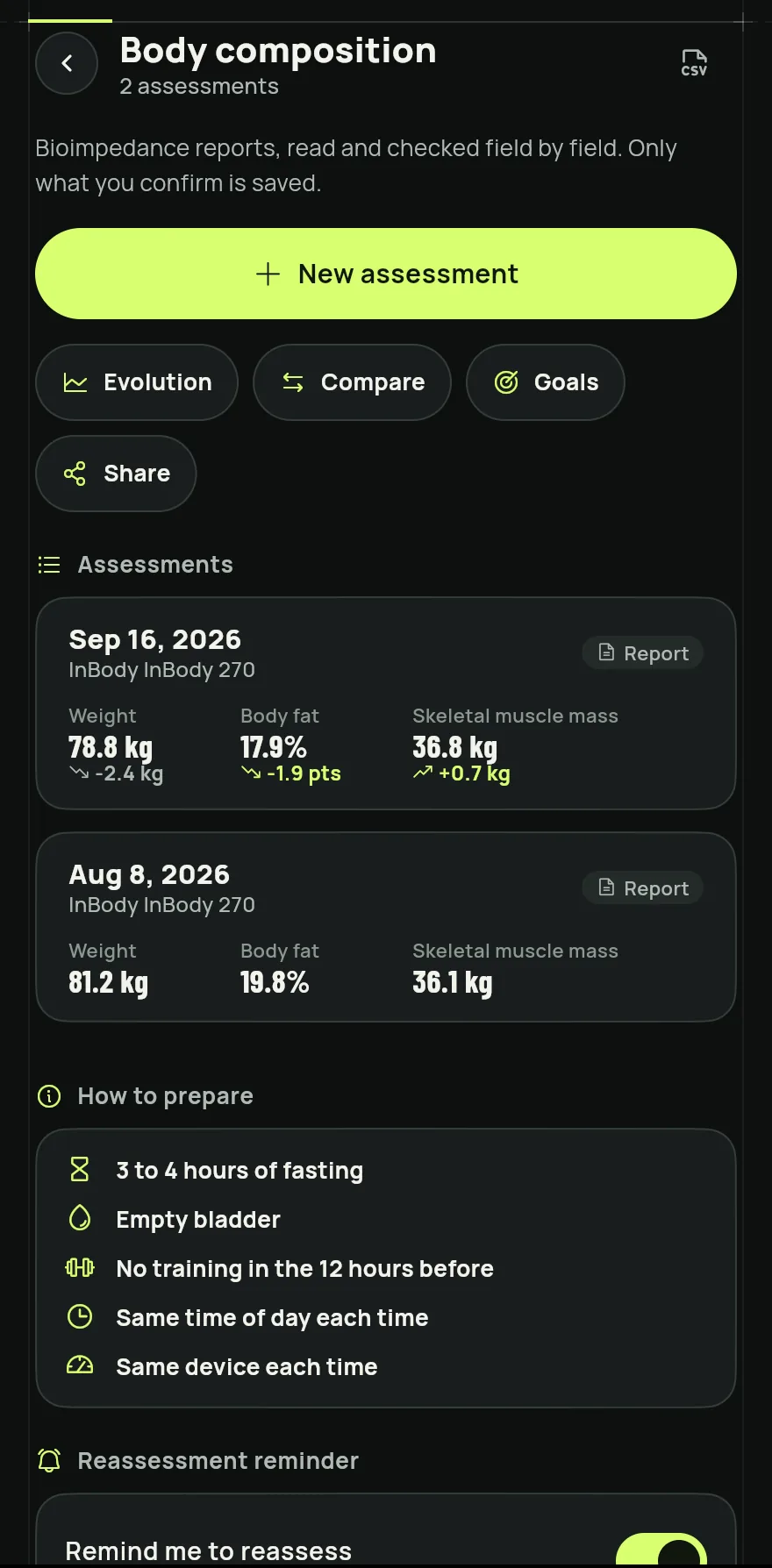
Step 1 Tap New assessment and choose how to bring the report: Import PDF, Photograph the report, Choose a photo or Type it in.
The first time a PDF or a photo is read, Gym+ explains how the report is read and that nothing is kept on the server. Tap I agree, read the report to go on, or Not now, type it in.
On Review the reading, check each number against the report. The highlighted ones were read with less certainty: confirm or correct them. Under Also save, choose whether the weight goes into the weight history and the body fat into the measurements. Then tap Save assessment.
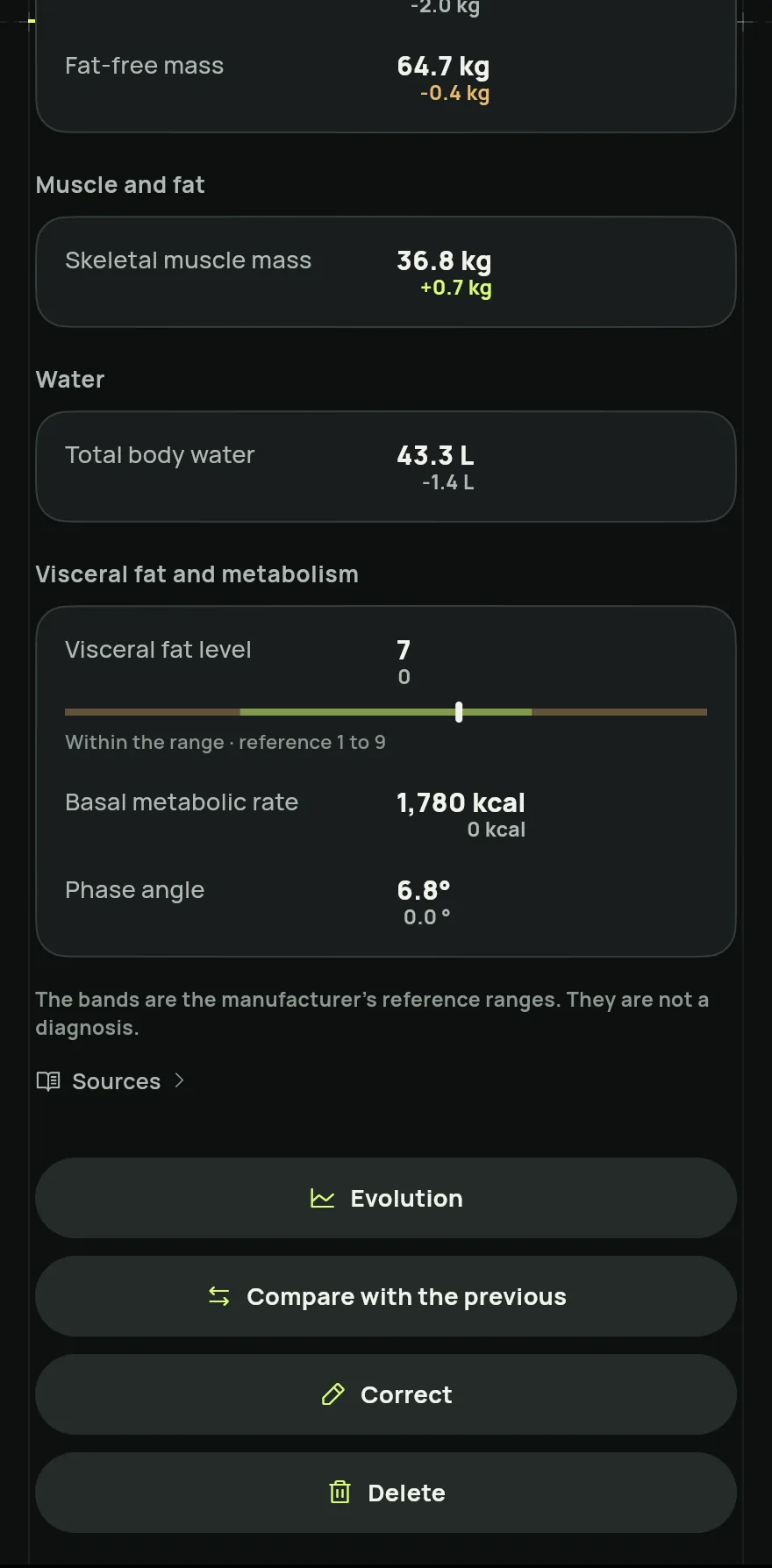
Step 4 Back on the list, use Evolution to see the chart of each metric and Compare to put two assessments side by side. When the report has the body segments, Body map shows up too.
In Goals, tap Set goal on a metric and enter the target. If you want a deadline, tap Add a date. Gym+ shows the pace from your own assessments.
Common problems
- The chart line starts again halfway
- The line starts again when the device changes, because different devices are never compared. Take your next assessments on the same device.
- The Share option does not show
- To share your progress you need two assessments from the same device.
- I want to stop reading reports on the server
- On the Body composition screen, under Your data, tap Revoke. Your saved assessments stay, and you will be asked again before the next reading.
Open in the app
In Gym+, tap the question mark on the Home screen to open the Help Center and search for “Body composition”. The Open now button takes you straight to the screen.
Related articles
- How to log your measurements and track how they changeLog weight, waist, arm, thigh and other measurements, see the trend on the chart and set a goal for each one.
- How to keep progress photos and compare before and afterTake front, side and back photos, see the timeline and compare two days side by side to watch your body change.
- How to connect Gym+ to the Health app or Health ConnectLet Gym+ save your workouts and read heart rate, calories and steps, and learn where to change or revoke the access.
Updated on 10/26/2026, app version 1.3.6