
Exercises and tools
How to use the training journal
Write down how the workout went, plans for next time, wins and pain, with photos or video, by day or by exercise.
- Plan
- Athlete
- Coach
- Works on
- iPhone
- Android
The journal keeps your training notes: form cues, plans for next time, how you felt and anything you want to remember later. Each note has a type, a date and, if you want, an exercise and attachments.
Step by step
On the Home screen, scroll to the end and tap Journal. The screen opens on the month calendar, with today marked.
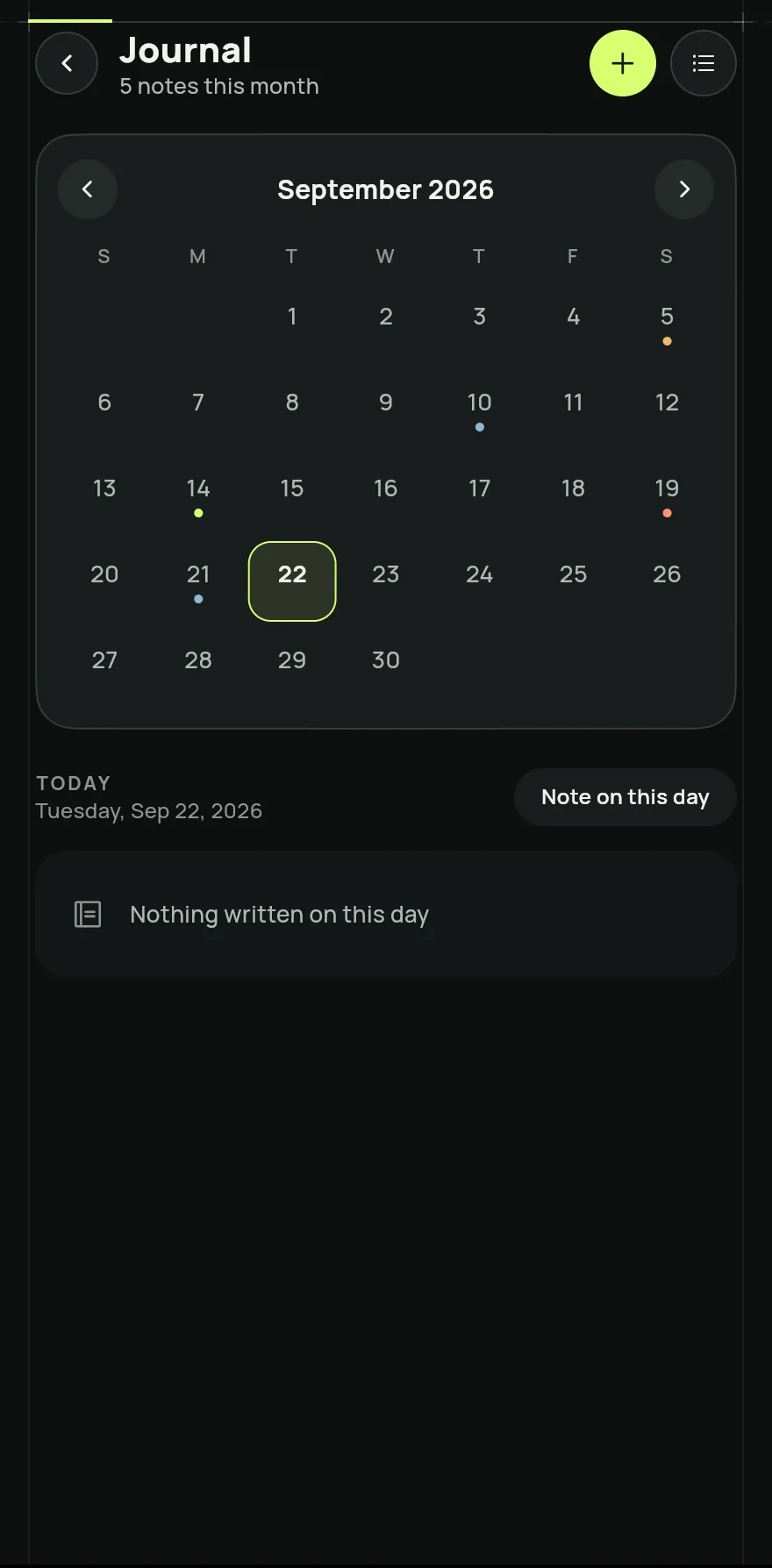
Step 1 Tap a day to see what you wrote on it. To write, tap Add note or Note on this day.
Choose the Type of note: Note, Plan, Win or Pain. Then write the text.
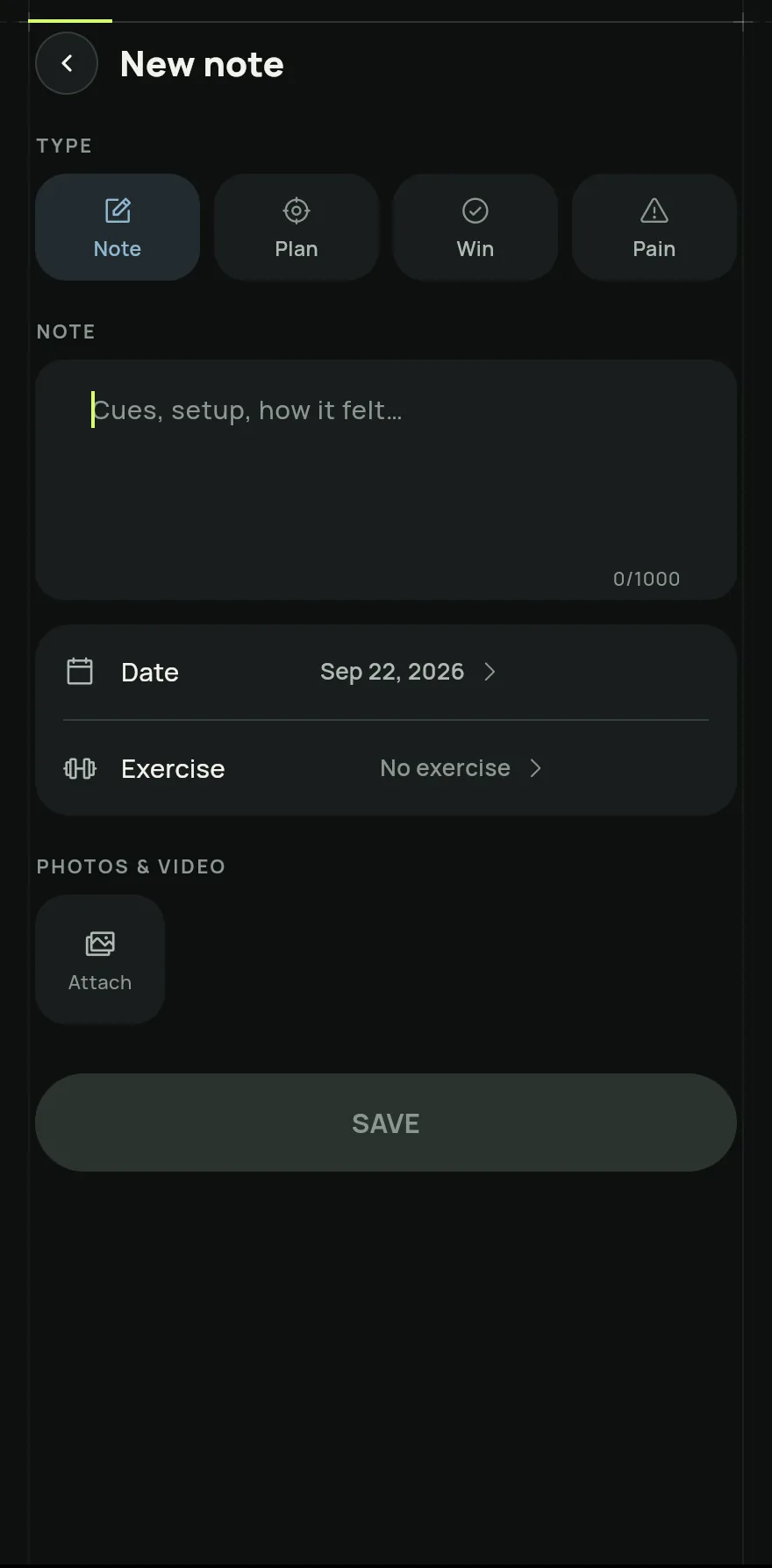
Step 3 If you like, change the Date, link the note to an Exercise and, under Photos & video, tap Attach.
Tap Save.
To see everything at once, tap All notes. The type buttons at the top filter the list. To go back to the month, tap Calendar.
Common problems
- I left the note and lost the text
- A note is kept only after Save. If you leave without saving, Gym+ asks whether to discard it; tap Keep editing so you do not lose what you wrote.
- A note does not show in the list
- Check whether a type filter is on in All notes and tap All. In the calendar, the note shows on the day of its date.
Open in the app
In Gym+, tap the question mark on the Home screen to open the Help Center and search for “Journal”. The Open now button takes you straight to the screen.
Related articles
- How to use the exercise librarySearch and filter exercises, see step-by-step form and your history, keep favorites and create exercises of your own.
- How to use the training calculatorsWork out 1RM, load by RPE, plates, warm-up, HR zones, BMI, body fat, FFMI, Wilks, DOTS and calories, and send the load to your workout.
Updated on 10/26/2026, app version 1.3.6