
Exercises and tools
How to use the training calculators
Work out 1RM, load by RPE, plates, warm-up, HR zones, BMI, body fat, FFMI, Wilks, DOTS and calories, and send the load to your workout.
- Plan
- Athlete
- Coach
- Works on
- iPhone
- Android
The Gym+ tools bring together the calculators that help you plan your training and follow your body. They open with the weight, height, age and sex from your profile, and show how each result is worked out.
Step by step
On the Home screen, scroll to the end and tap Tools. You can also find the screen through search.
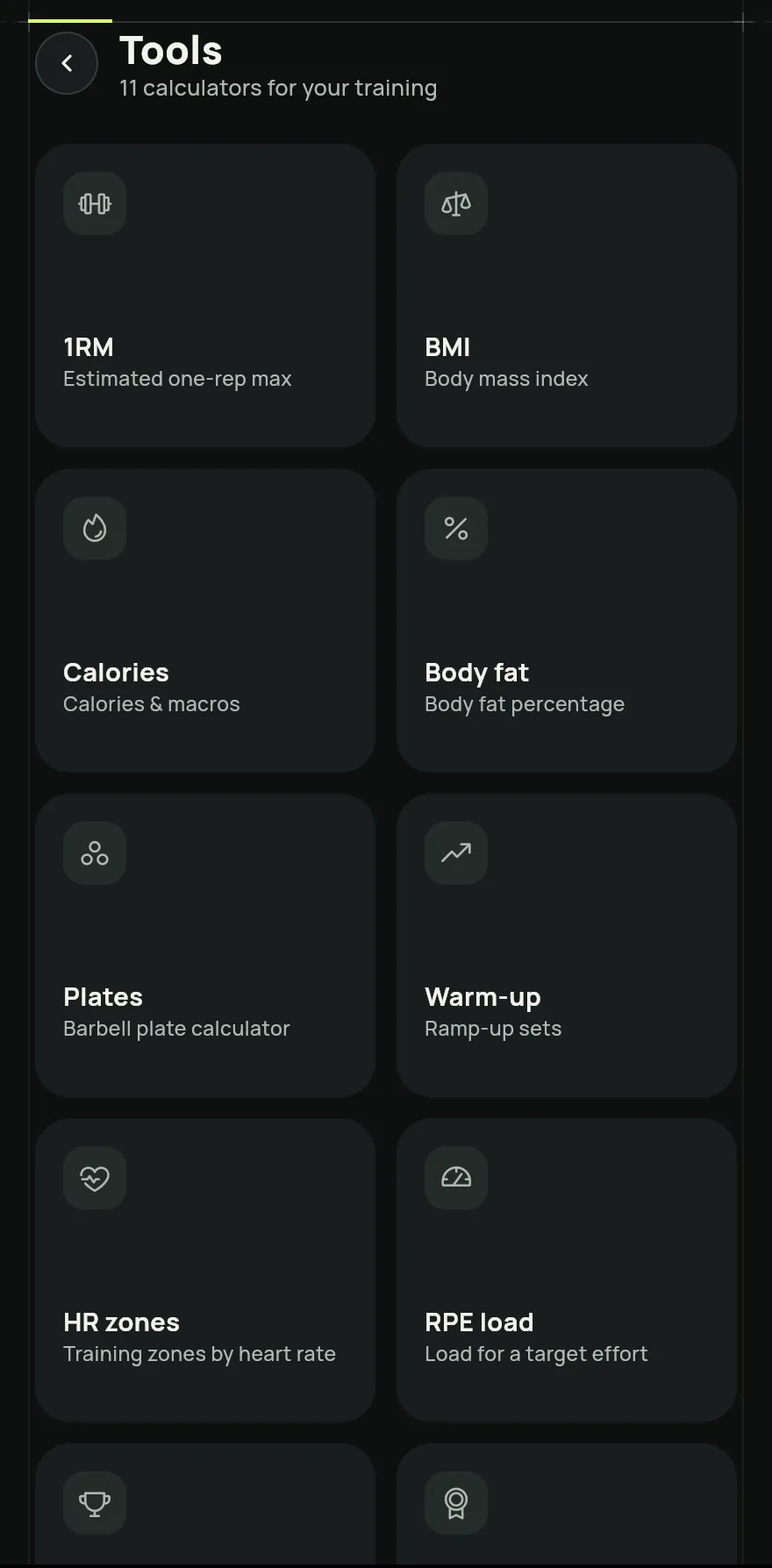
Step 1 Pick a calculator: 1RM, RPE load, Plates, Warm-up, HR zones, BMI, Body fat, FFMI, Wilks, DOTS or Calories.
Adjust the values with the minus and plus buttons, or tap the number to type it. The result changes right away.
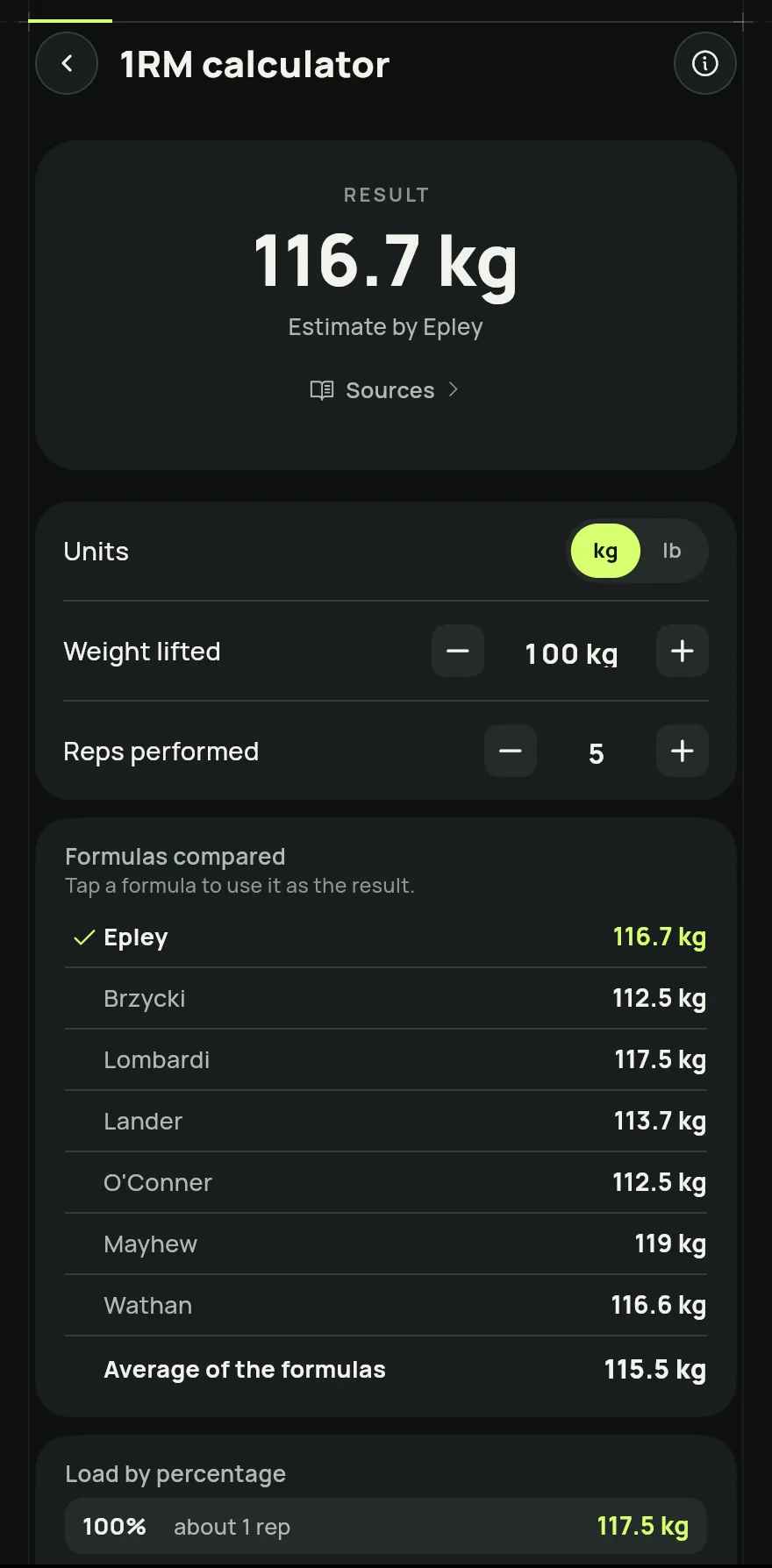
Step 3 Under How it is worked out, see the formula used. In some calculators, Formulas compared shows the result of each one; tap one to use it as the result.
With a workout in progress, tap Use this load in the 1RM or RPE load table to fill in the next set of the exercise. In the warm-up, tap Add to the workout to add the warm-up sets.
Common problems
- The button to send the load to the workout does not show
- It only shows with a workout in progress. Start the workout and come back to the calculator. See How to start a workout and log your sets.
- The calculator opened with the wrong weight or height
- The values come from your profile. Fix your weight and height in the profile and the calculators use them. See How to edit your profile.
Open in the app
In Gym+, tap the question mark on the Home screen to open the Help Center and search for “Tools”. The Open now button takes you straight to the screen.
Related articles
Updated on 10/26/2026, app version 1.3.6