
Progress
How to see and fix your workout history
See every workout day by day, with exercises, sets and loads, fix an entry, resume a workout or log a past workout.
- Plan
- Athlete
- Coach
- Works on
- iPhone
- Android
Your history keeps every workout, day by day. On the consistency calendar, each training day is marked; tap a day to see the exercises, sets and loads of that workout and fix anything that is wrong.
Step by step
Tap Progress in the bar at the bottom, then Activity. The Progress screen opens on the Consistency calendar.
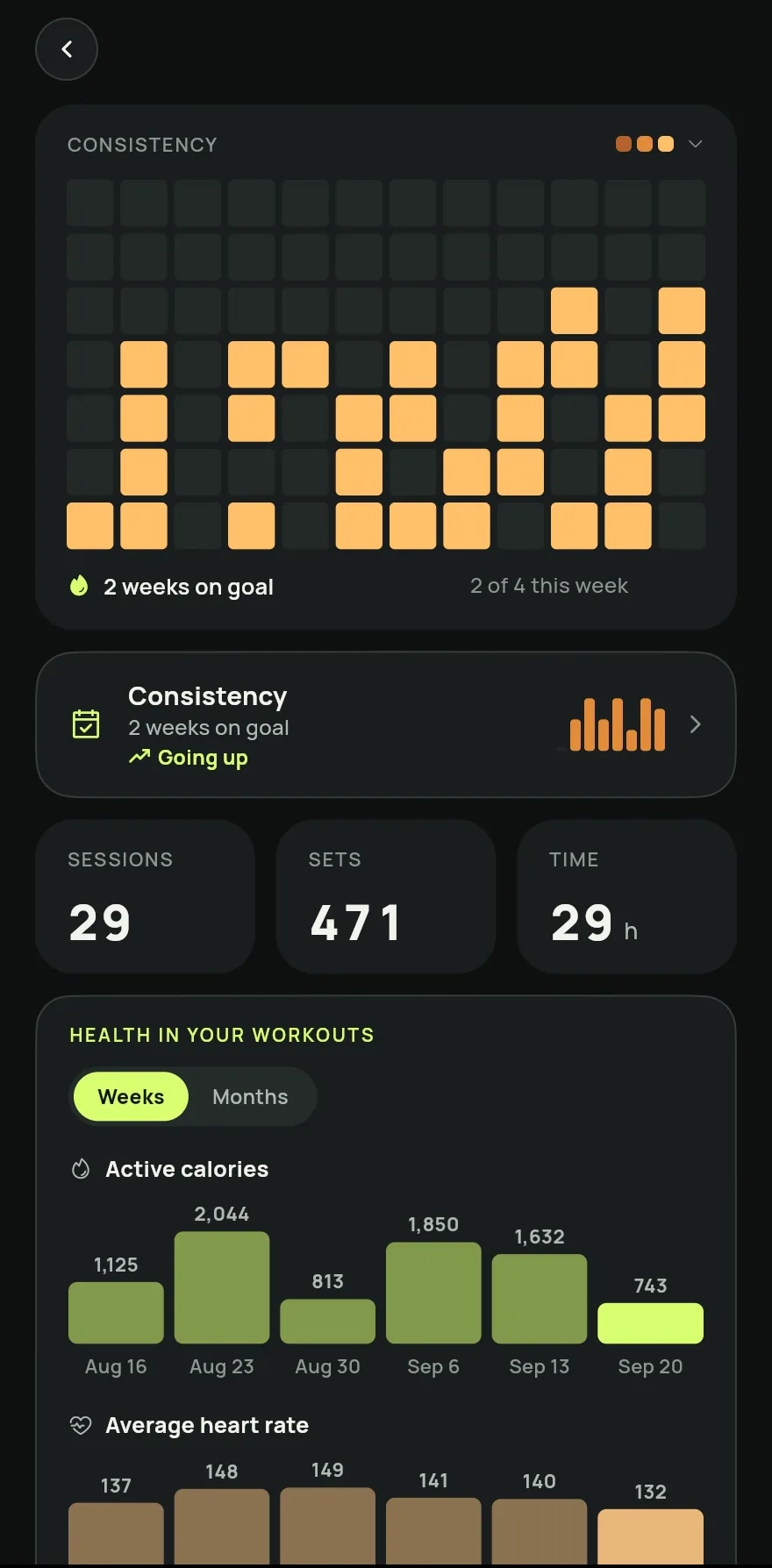
Step 1 Tap a day. The sheet shows the date and the totals of Exercises, Sets, Volume and Time, followed by each exercise with its sets and loads.
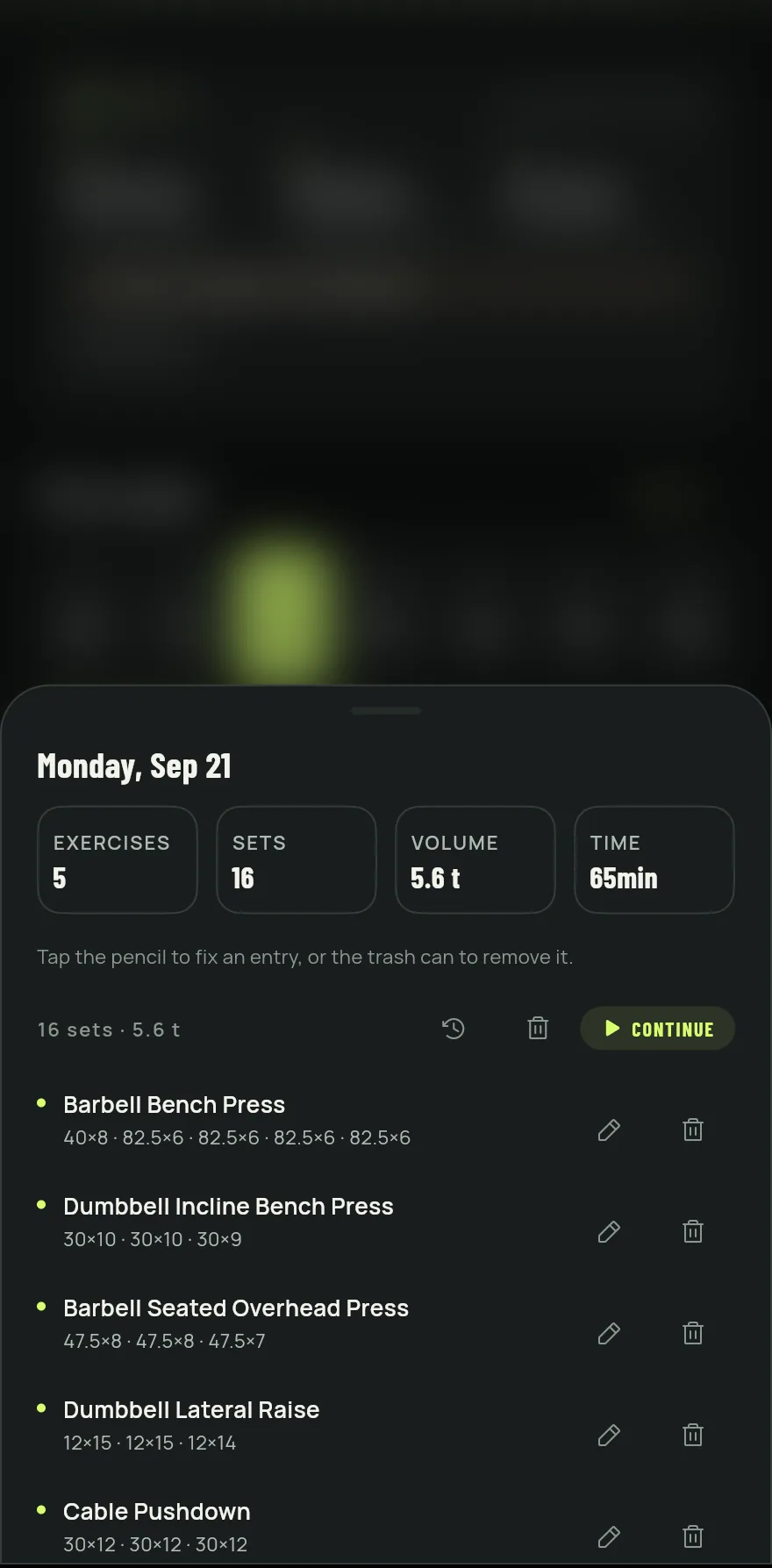
Step 2 To fix an exercise, tap the pencil next to it, change the reps or the weight of any set or tap Add set, then Done. To take the exercise off that day, tap the trash can.
To change the start or the length of the workout, tap Edit time.
To go back to a workout, tap Continue. It goes back to being in progress with its sets already ticked and, when you finish it again, it is saved on its original day.
On a past day with no workout, tap Log a workout to log what you did that day.
Common problems
- I cannot edit the time or continue a workout
- These options are hidden while a workout is in progress. Finish or discard the current workout and try again.
- A workout is missing from the history
- Only finished workouts are saved. A discarded workout is not kept. See How to start a workout and log your sets.
Open in the app
In Gym+, tap the question mark on the Home screen to open the Help Center and search for “History”. The Open now button takes you straight to the screen.
Related articles
- The Progress tab: how to follow your progressSee your total workouts, the rhythm of recent weeks, your volume, your consistency and the muscles you worked over time.
- How personal records workSee your best on each exercise, how each record is measured and how Gym+ tells you when you beat a mark during a workout.
Updated on 10/26/2026, app version 1.3.6