
Training
How to start a workout and log your sets
Start a workout from a routine, from exercises, from muscles or as a quick workout, and log the load and reps of every set.
- Plan
- Athlete
- Coach
- Works on
- iPhone
- Android
You can start a workout in several ways: follow a ready routine, pick exercises or muscles on the spot, or ask for a quick workout. During the workout, every set you mark is logged and the rest starts on its own.
Before you start
- If you want to follow the same plan every time, build a routine first. See How to create and use workout routines.
Step by step
On the Home screen, tap Start workout.
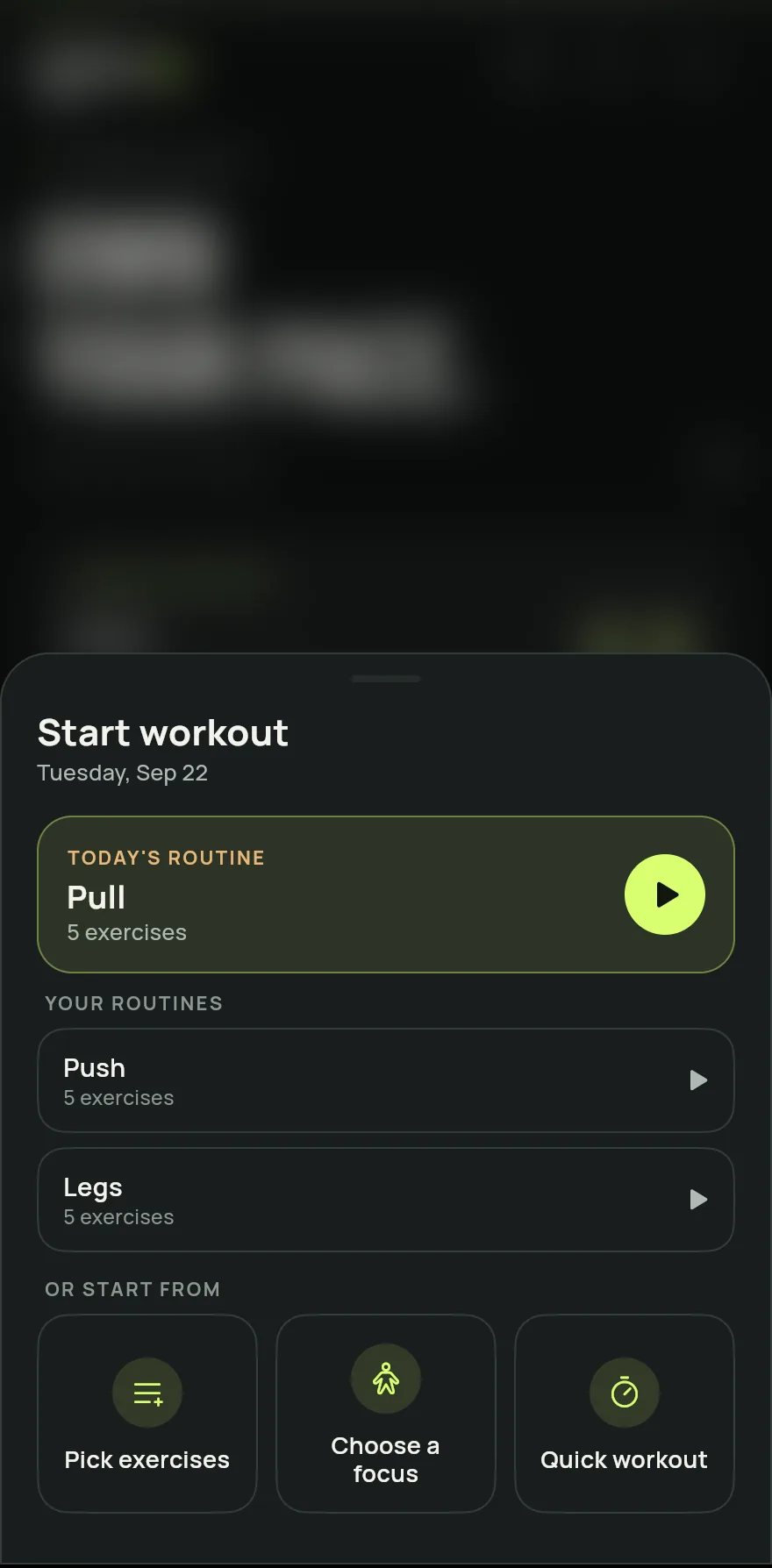
Step 1 Choose how to start: one of your routines, the exercises or muscles you want to train, or a quick workout.
For each exercise, enter the load and the reps and mark the set as done.
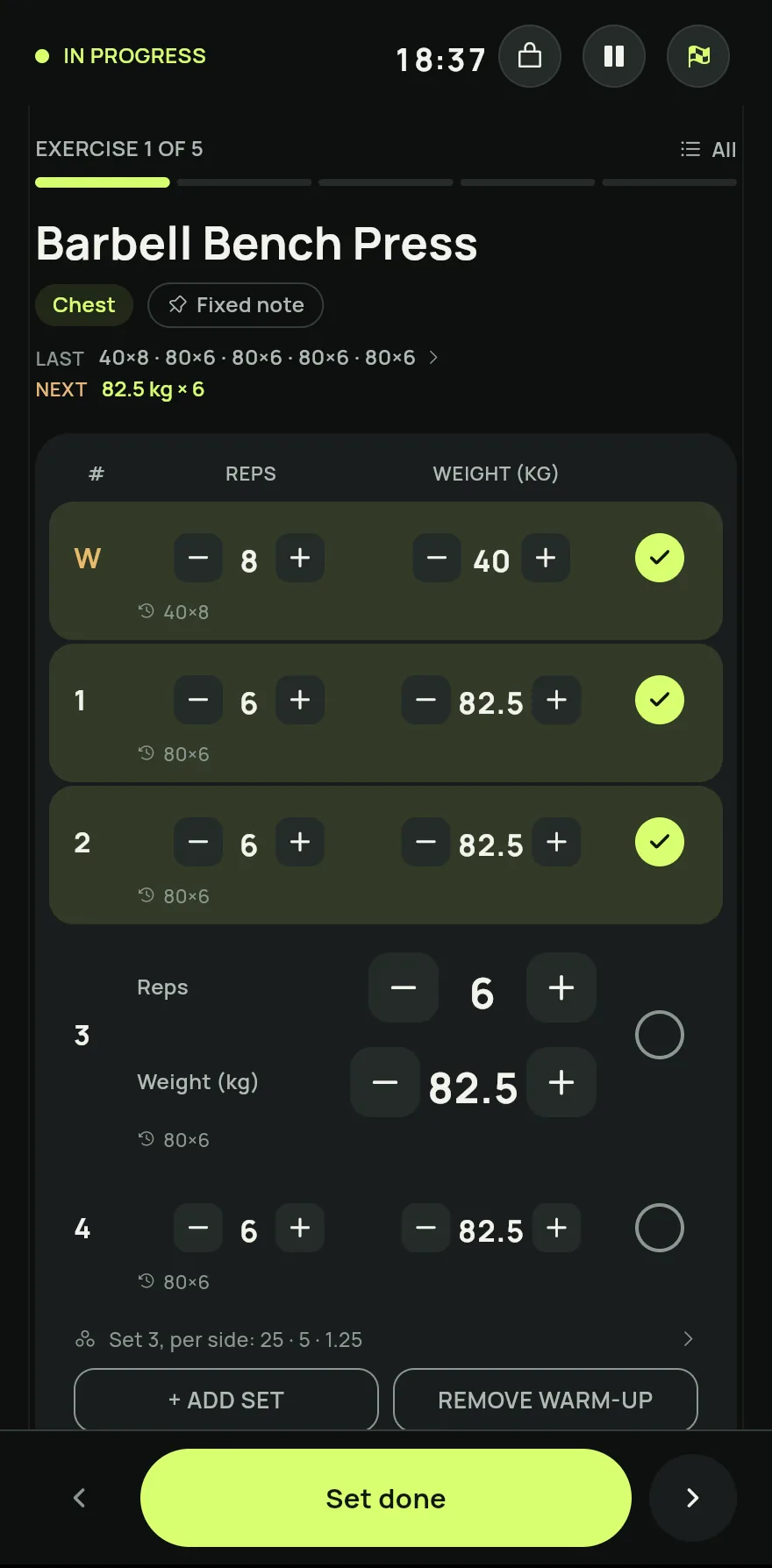
Step 3 When you mark the set, the rest starts on its own. When it ends, Gym+ tells you the next set is waiting.
To add another exercise during the workout, tap Add exercise.
At the end, tap Finish workout. The sets you marked are saved; the ones left are not.
Common problems
- The rest did not start after the set
- Check the rest time in settings. With rest turned off, the timer does not show. See How to set the rest between sets and the alarm.
- I want to repeat a quick workout
- At the end of the quick workout, save it as a routine to use it again. See How to do a quick workout with the time you have.
Open in the app
In Gym+, tap the question mark on the Home screen to open the Help Center and search for “Starting a workout”. The Open now button takes you straight to the screen.
Related articles
- How to create and use workout routinesBuild routines with exercises, sets, reps and loads, spread them across the week and start each workout with everything ready.
- How to do a quick workout with the time you havePick the time, the theme and the place, and Gym+ builds a workout on the spot that you can save as a routine at the end.
- How to set the rest between sets and the alarmSet the default rest between sets, adjust it during a workout and choose how the alarm tells you the rest is over.
Updated on 10/26/2026, app version 1.3.6