
Getting started
Muscle recovery: how to read your readiness
How Gym+ works out the recovery of each muscle from your sets and where to see the body's recovery map.
- Plan
- Athlete
- Coach
- Works on
- iPhone
- Android
Every set you log tires the muscle it worked, and that fatigue fades over the hours. Gym+ adds up the sets of the last 8 days and shows, muscle by muscle, how far each one has recovered. Recovery guides the suggestion of the day, but never stops you from training.
Step by step
On the Home screen, today's card shows your Ready percentage and the body map: the colors go from fatigued to fresh.
If a muscle of the day's routine is still recovering, the card warns you with the muscle's name and percentage. You choose whether to switch routines or train anyway. See Today's card: which workout Gym+ suggests.
To see the whole body, open the Progress tab and, on the Muscle map card, tap Recovery.
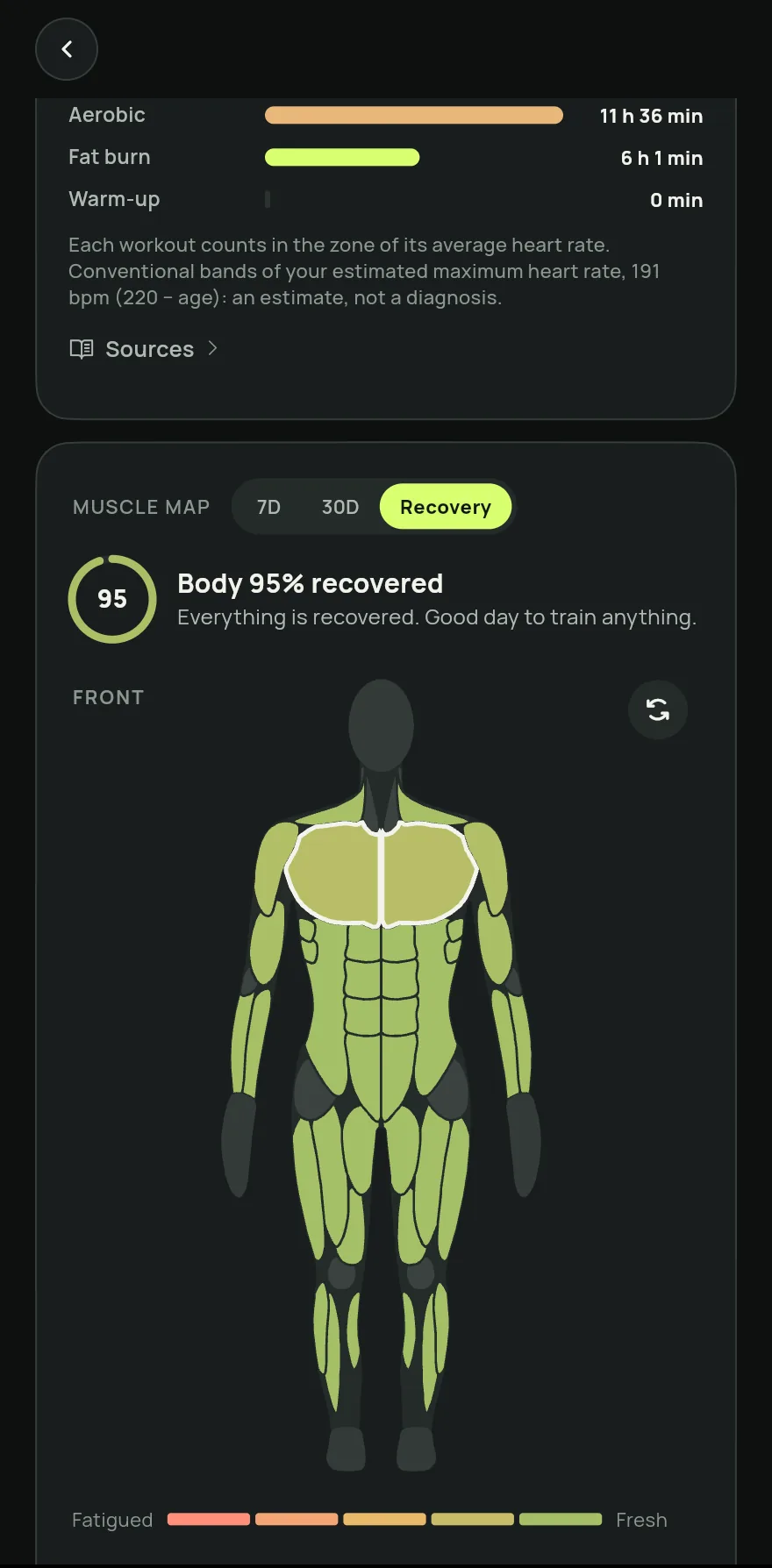
Step 3 At the top of the card you see how recovered your body is and which muscles are still recovering.
Tap a muscle on the map to see its percentage and, when it still has a way to go, in how many hours it should be ready.
Common problems
- A muscle shows as tired, but I did not train it
- Exercises also work secondary muscles, which count at half weight.
- The map shows everything recovered after a workout
- Only sets from finished workouts count. Warm-up sets stay out. See How to start a workout and log your sets.
Open in the app
In Gym+, tap the question mark on the Home screen to open the Help Center and search for “Muscle recovery”. The Open now button takes you straight to the screen.
Related articles
- The Home screen: what each part showsWhat the Gym+ Home screen shows, from today's workout to your week, and where help, search and settings are.
- Today's card: which workout Gym+ suggestsHow today's card picks between your plan's routine and your most rested muscles, and what to do with each suggestion.
- How to set your weekly goal and follow your rhythmSet how many days a week you want to train, watch your week fill up on the Home screen and compare your last weeks.
Updated on 10/26/2026, app version 1.3.6