
Getting started
How to set your weekly goal and follow your rhythm
Set how many days a week you want to train, watch your week fill up on the Home screen and compare your last weeks.
- Plan
- Athlete
- Coach
- Works on
- iPhone
- Android
Your weekly goal is the number of days a week you want to train. Each day with a saved workout fills part of the goal, and the weekly rhythm shows your consistency over your last weeks.
Step by step
On the Home screen, scroll to This week. The bar shows how many days you trained and what the goal is, for example 2 of 4 this week.
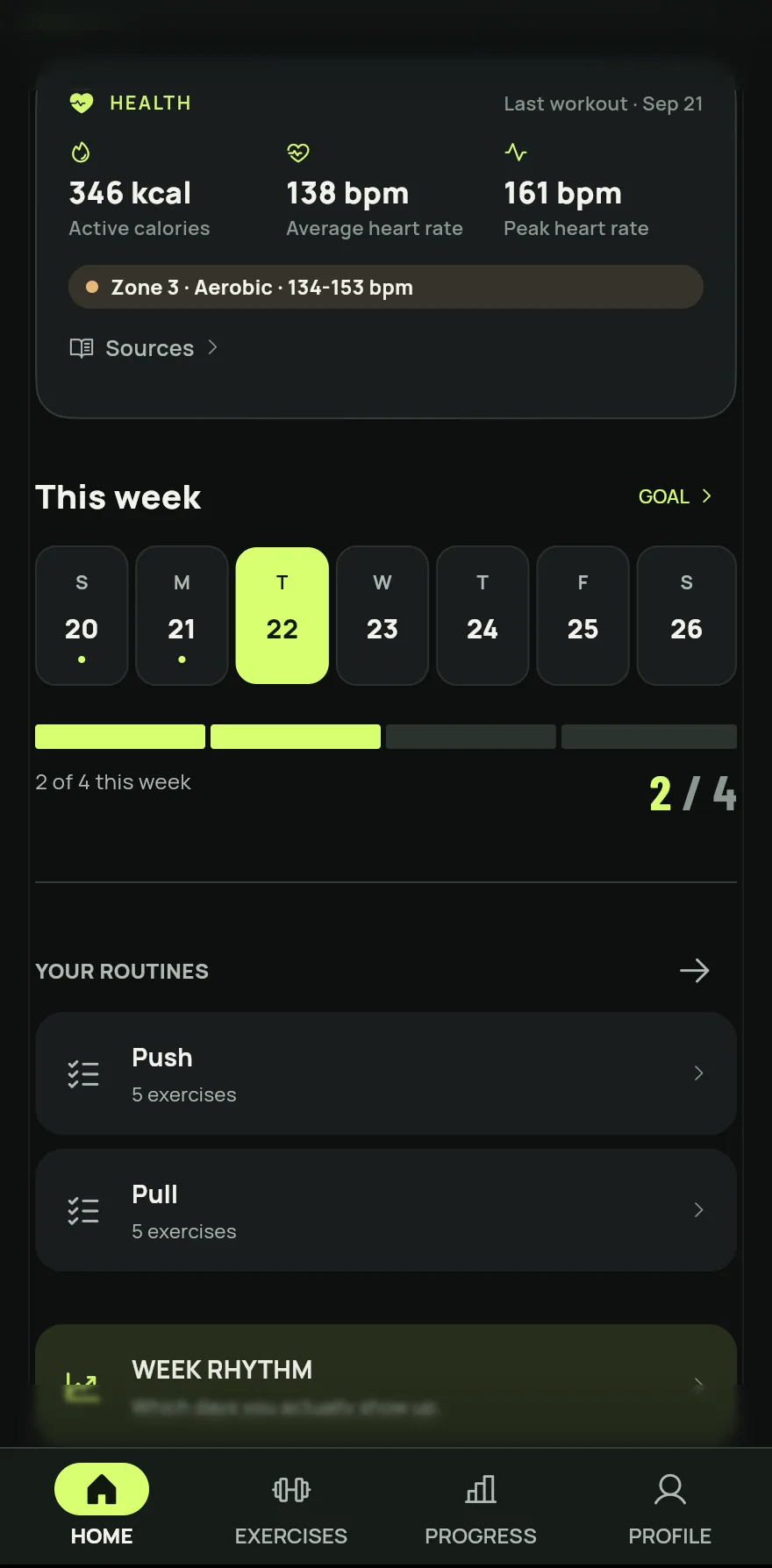
Step 1 To change the goal, tap Goal, next to the title, and adjust the Weekly goal with the minus and plus buttons.
Further down, tap Week rhythm to open the Weekly rhythm screen.
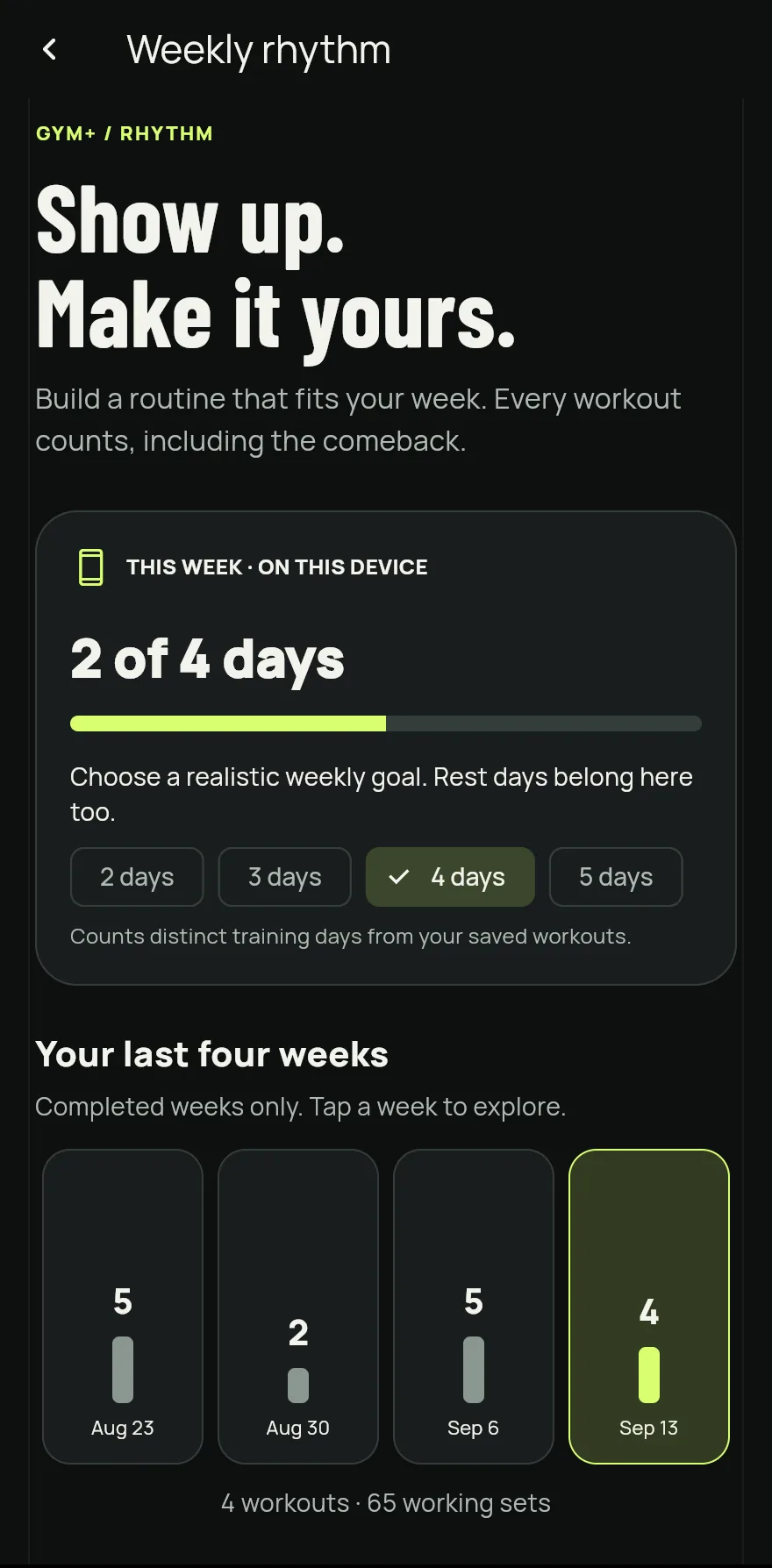
Step 3 At the top of the screen is this week's progress. Right below, pick a goal from 2 to 5 days. A realistic goal helps more than a high one.
Under Your last four weeks, each bar is a completed week. Tap one to see how many workouts and working sets it had.
Common problems
- I trained, but the day did not count
- Only finished, saved workouts count. A discarded workout does not. See How to start a workout and log your sets.
- My goal changed on its own
- Building or redoing the tailored plan sets the goal to the plan's days. You can change it again at any time.
Open in the app
In Gym+, tap the question mark on the Home screen to open the Help Center and search for “Weekly goal and rhythm”. The Open now button takes you straight to the screen.
Related articles
- The Home screen: what each part showsWhat the Gym+ Home screen shows, from today's workout to your week, and where help, search and settings are.
- Today's card: which workout Gym+ suggestsHow today's card picks between your plan's routine and your most rested muscles, and what to do with each suggestion.
- Muscle recovery: how to read your readinessHow Gym+ works out the recovery of each muscle from your sets and where to see the body's recovery map.
Updated on 10/26/2026, app version 1.3.6